Jinnoro
Guides · Using Jinnoro · 4 min read
Keep every device in sync with Google Drive
Sign in with Google and your tasks follow you to every device, stored in your own Drive.
Without an account, Jinnoro keeps your tasks in your browser. That is private and instant, but it stays on one device. Signing in with Google adds a copy in your own Google Drive, and that copy keeps every device up to date.
Your tasks go directly between your browser and Google. There is no Jinnoro database in between.
Step 1
Sign in from the account menu
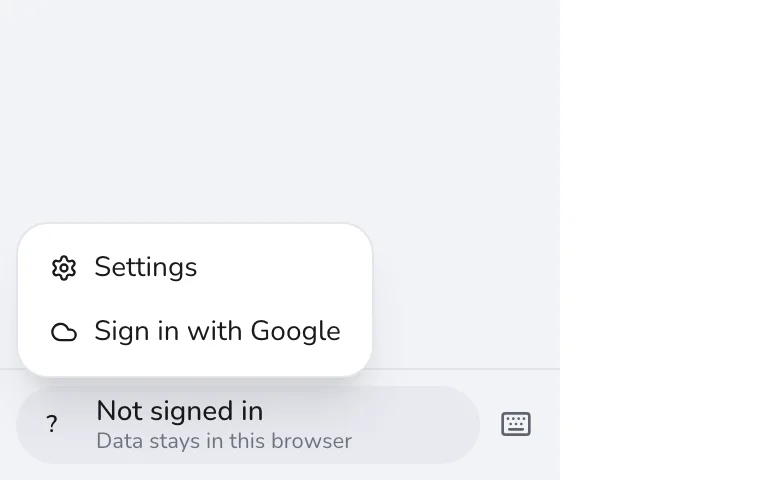
At the bottom of the sidebar, click your account. It shows Not signed in until you connect. Choose Sign in with Google and approve the permissions.
Step 2
Know what is stored where
- A hidden file in your Drive. It holds your tasks, and only Jinnoro can read it. It does not show in the Drive file list.
- A readable copy. A folder called Jinnoro in My Drive holds
Jinnoro.md(your projects and tasks as checklists) andjinnoro-backup.json. These are one-way copies: editing them does not change the app.
Step 3
Let it sync
Your browser stays the working copy, so the app is instant and works offline. A few seconds after you change something, it uploads. Jinnoro also checks Drive when you come back to the tab and every couple of minutes.
If you edit on two devices, the changes are merged task by task: the newer edit wins, and a deletion beats an older edit. Nothing is lost when a browser that already has tasks connects to a Drive that has some: they are combined.
Step 4
Sync now, log out, or remove the account
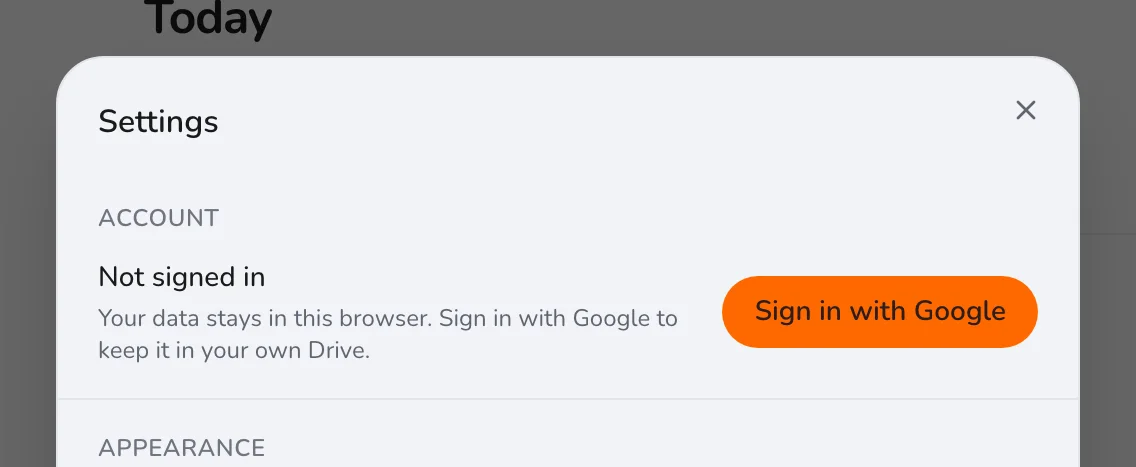
In the account menu, Sync now syncs right away. Log out stops syncing on this device and keeps your data here. In Settings, Remove account also deletes the synced file and the Jinnoro folder from your Drive, and withdraws permission.
Step 5
If syncing ever goes wrong
When signed in, Settings has an If syncing goes wrong section. It can replace the Drive copy with this device's data, or replace this device with the Drive copy. A copy that cannot be read is never overwritten automatically.
Tip. Export a backup before you use either option. See backing up and exporting your tasks.
Sign in once on each device and it just works. If you would rather not sign in, nothing changes: your tasks stay in your browser. Either way, keep a backup.