 Jinnoro
Tutorial
A calm task system in Jinnoro
A simple setup that keeps your head clear: one Inbox to catch everything, projects to hold it, and two labels that tell you what to do next and what you are waiting for.
This setup rests on one idea: your mind is for having ideas, not for holding them. You write everything down in one trusted place, decide what each thing needs, and then look only at the short list of what you can do now.
Jinnoro has everything this needs: an Inbox, projects that nest inside projects, and labels. This tutorial takes about ten minutes to set up and shows the daily routine that makes it work.
Step 1
Build projects and subprojects
Here, a project is anything that takes more than one step to finish. Jinnoro lets you nest projects as deep as you like, so you can group them into areas of your life and keep the detail one click deeper.
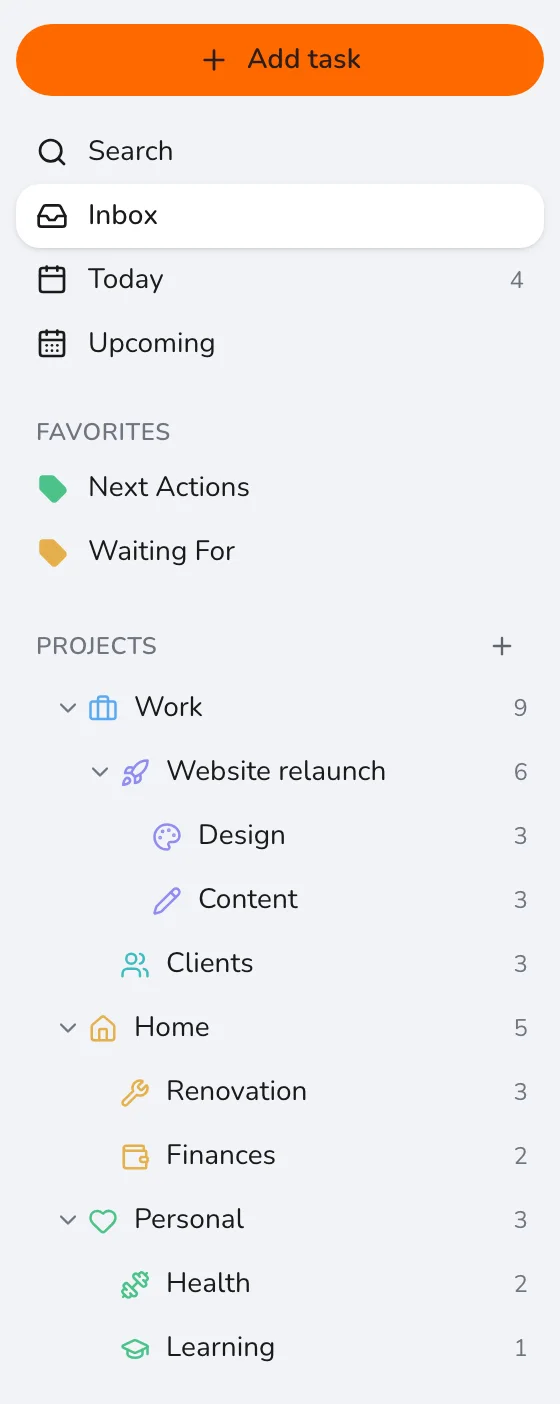
A good starting shape is three areas, Work, Home and Personal, with your real projects inside: a website relaunch, a bathroom renovation, a course you are taking.
Press the + next to Projects in the sidebar, give the project a name, a color and an icon, and choose where it lives in the Inside field.
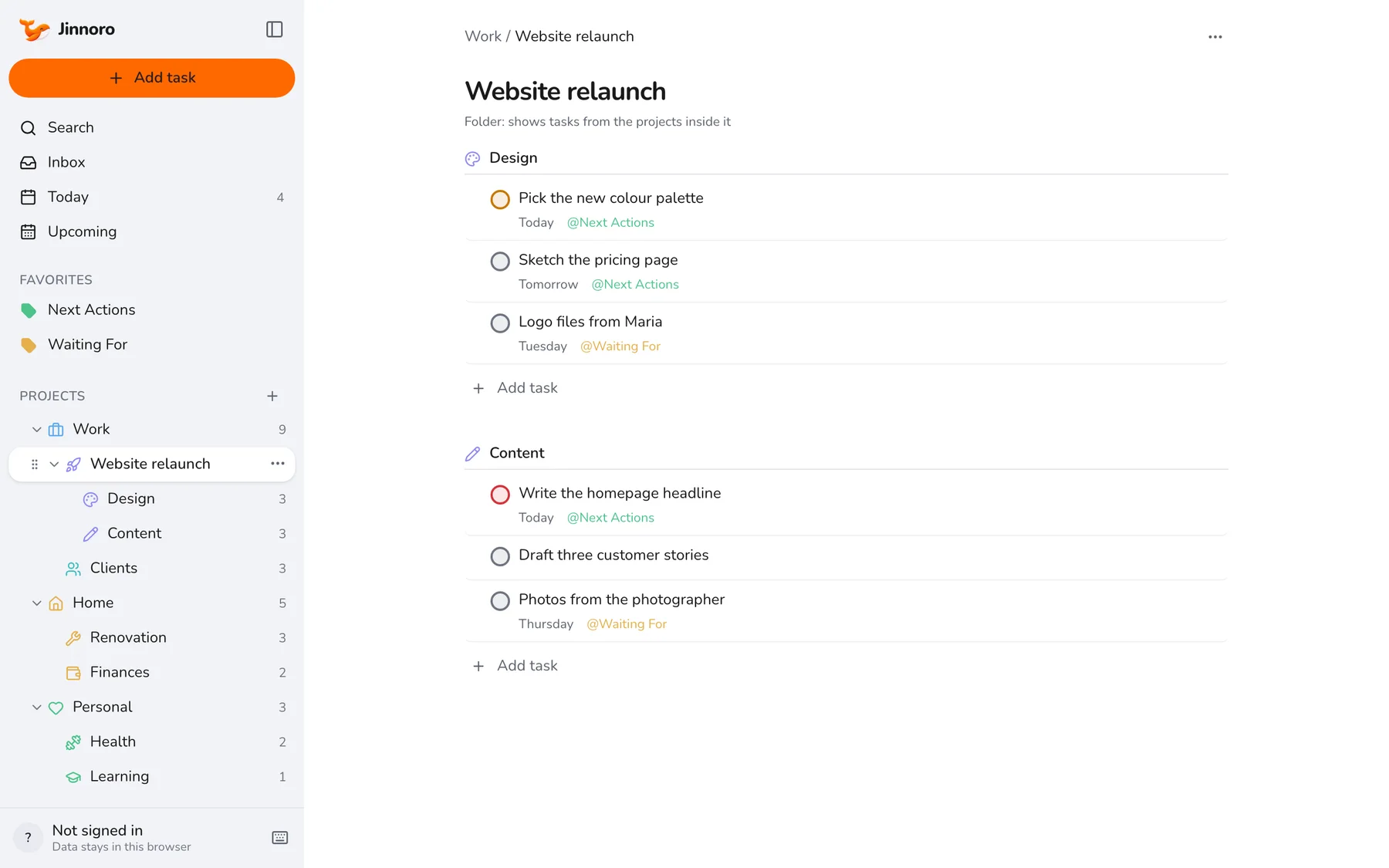
A project that has subprojects works as a folder: it holds no tasks of its own, and its page shows the tasks of everything inside it.
Tip. Don’t over-design this. Start with a few projects and add more when something new needs one.
Step 2
Create the two labels
Projects say what the work belongs to. Two labels say what state it is in, and they work across every project:
- Next Actions: the very next physical step on a project, the thing you would do if you sat down right now. You will look at this list every day.
- Waiting For: things you have handed to someone else or are waiting to receive, such as a reply, a delivery or a payment.
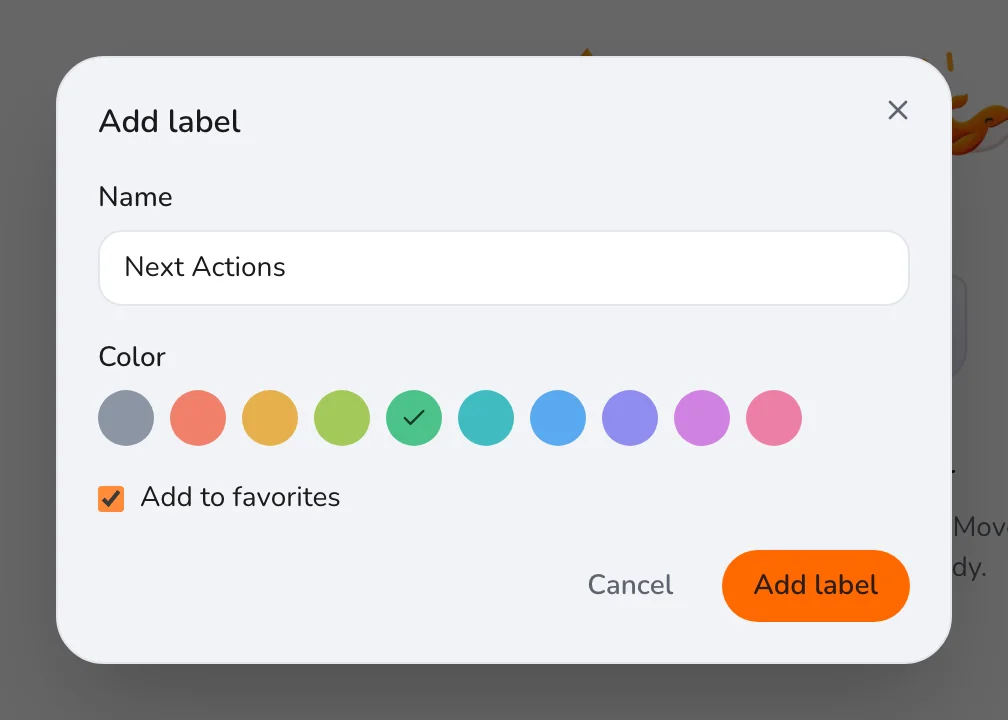
Press the + next to Labels in the sidebar, type the name, choose a color, and tick Add to favorites so the label sits right under Today in the sidebar.
Step 3
Capture everything in the Inbox
The Inbox is where anything lands when you have not decided what to do with it. Your job at this stage is only to get it out of your head. Don’t pick a project, a date or a label. Just write it down.
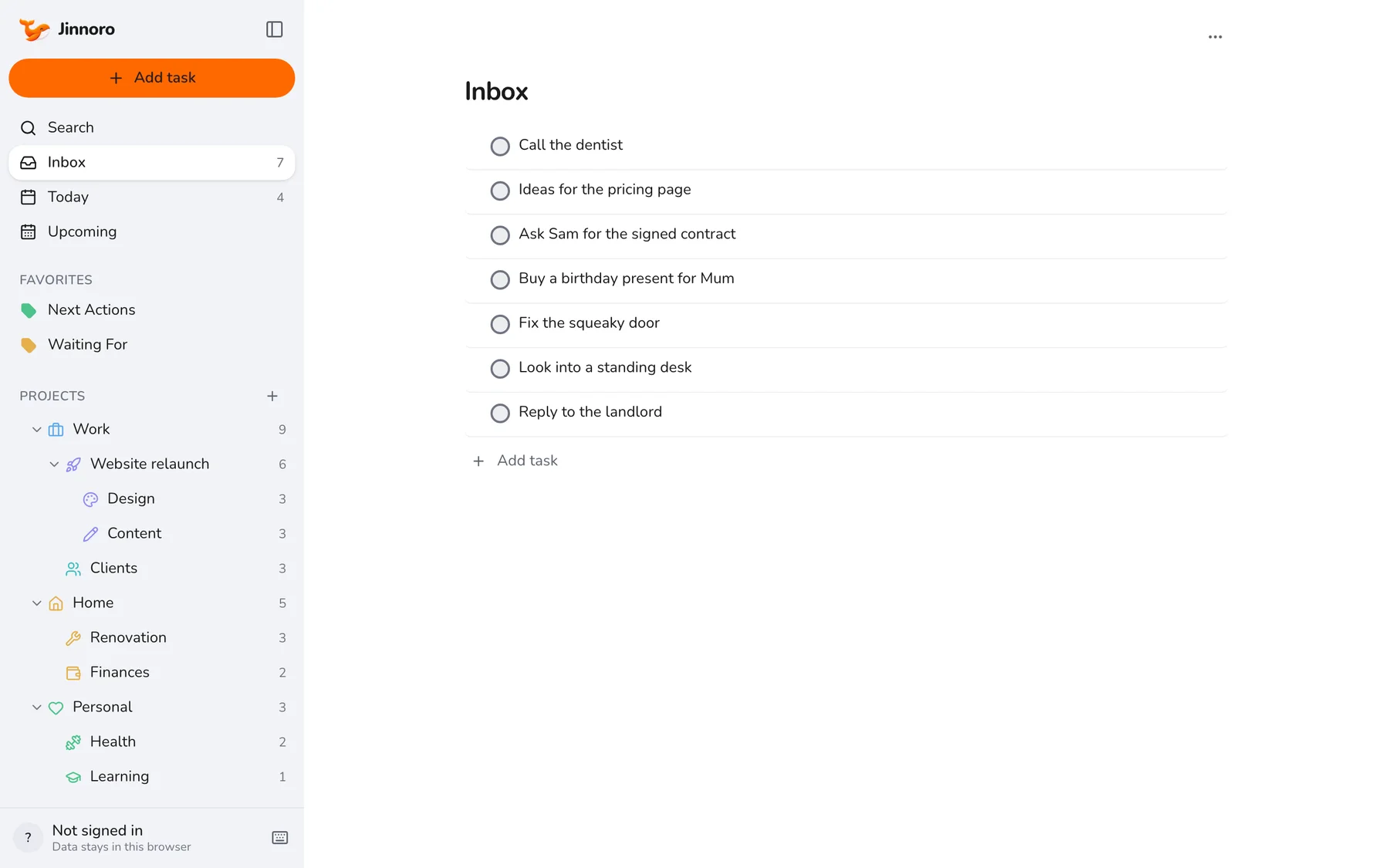
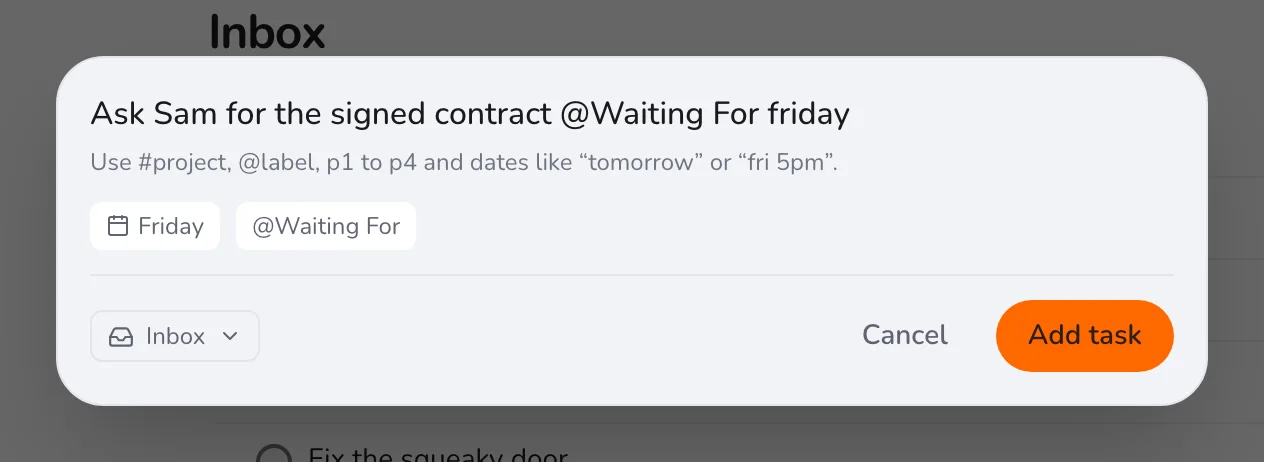
Press Q anywhere in the app to open Quick add. It understands #project, @label, p1 to p4 and dates in plain words, so when you do know the details you can add them as you type:
Tip. Put the Jinnoro tab or the Mac app one keystroke away. A capture habit only works if it is effortless.
Step 4
Clear the Inbox into projects
Once or twice a day, go through the Inbox from the top and take one item at a time. For each item, ask what it is and decide:
- Takes two minutes? Do it now and check it off.
- Belongs to a project? Move it there.
- Waiting on someone? Move it and add the Waiting For label.
- Not useful? Delete it.
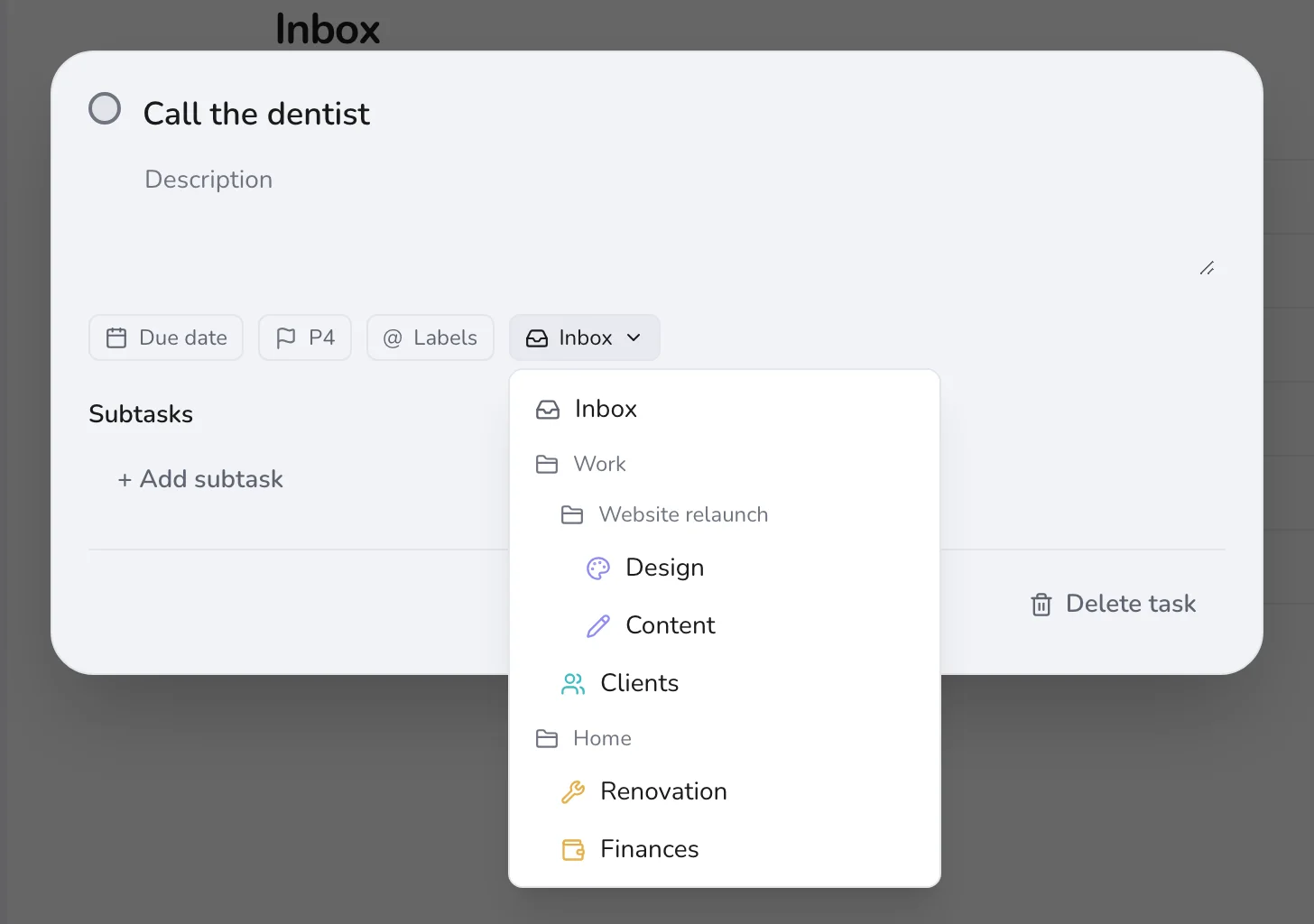
Open a task and use the project button to move it, or drag it onto a project in the sidebar. The goal is an empty Inbox, which is a good feeling the first time you reach it.
Step 5
Mark your Next Actions
A project is not a task: you can’t “do” a website relaunch. You can write a headline, pick a palette or email a printer. Give each project one concrete next step and mark it with Next Actions.
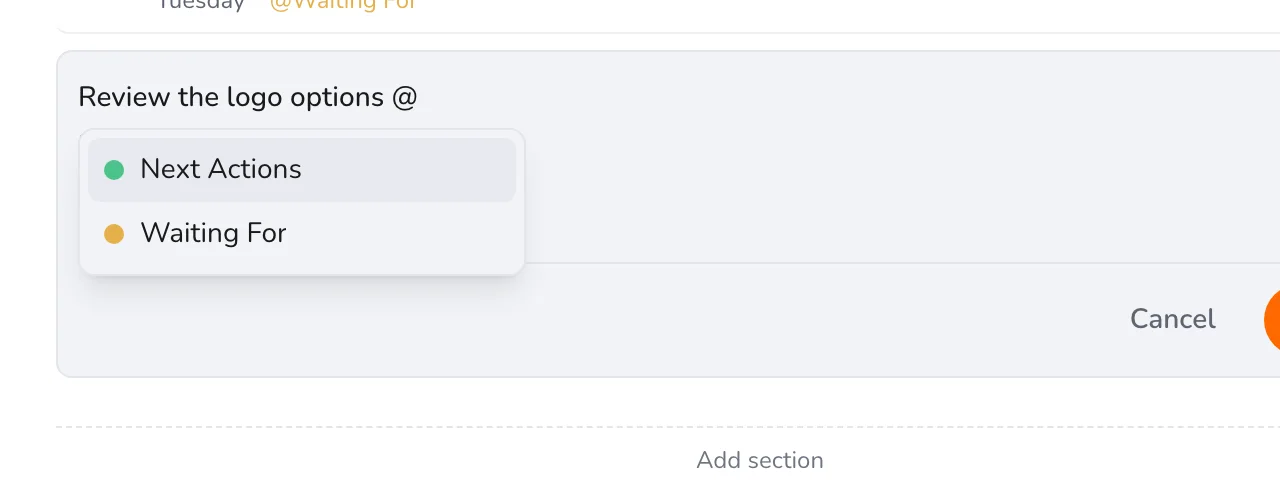
Type @ in the task name and Jinnoro suggests your labels. Use the arrow keys and press Enter, or click one.
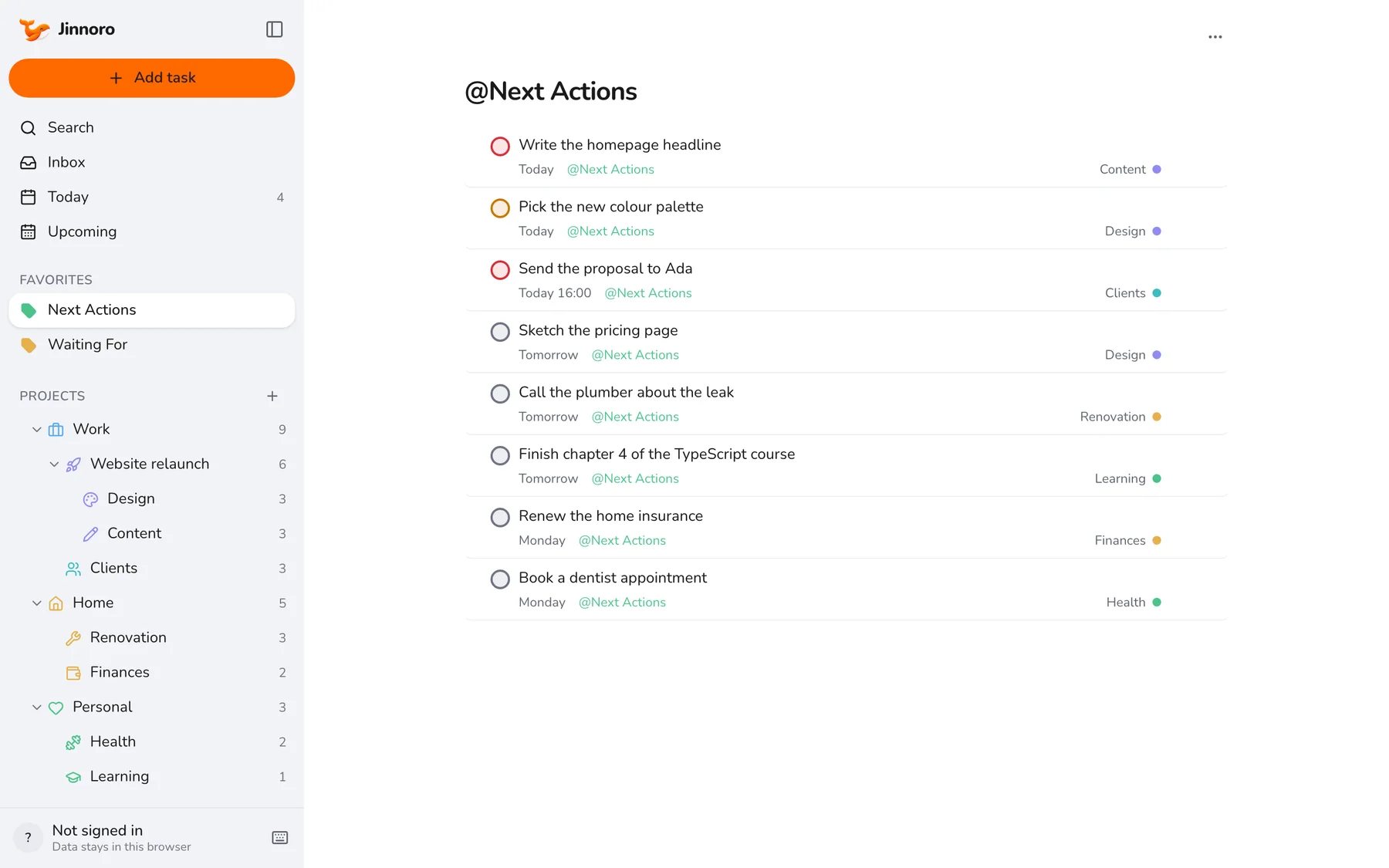
Now open Next Actions in the sidebar. It lists the next step of every project in one place, sorted by date, with the project shown on the right. This is the list you work from.
When you finish one, check it off and give that project its next step the same minute.
Step 6
Track what you are Waiting For
When the next step belongs to someone else, you cannot do it, but you must not forget it. Add the Waiting For label, write the task as what you expect (“Logo files from Maria”), and set a due date for when you will follow up.
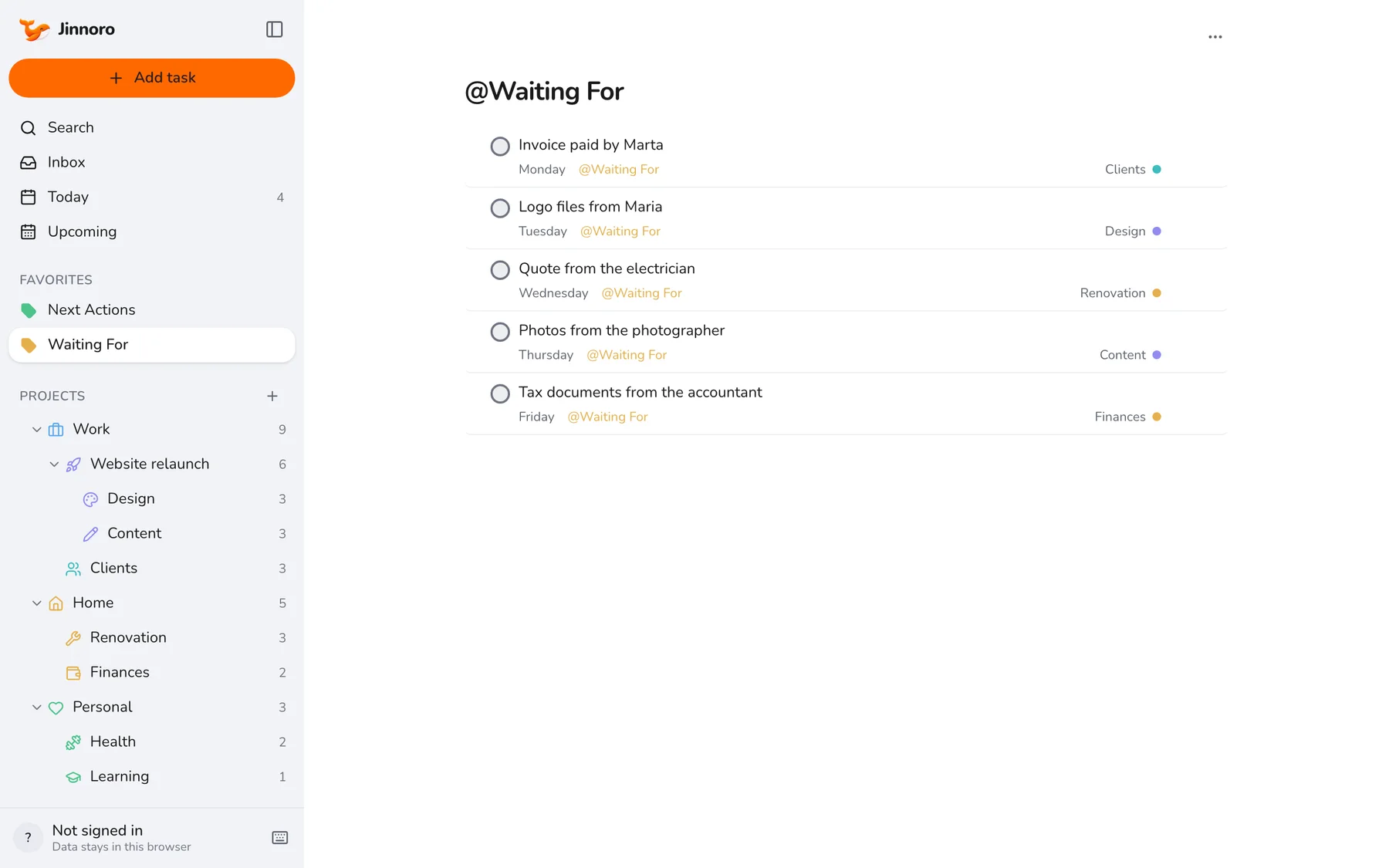
Look at this list once a week. Anything past its date gets a nudge, and anything that has arrived gets its label changed to Next Actions, or is checked off.
Step 7
The daily and weekly routine
The setup only pays off if you look at the right lists at the right time.
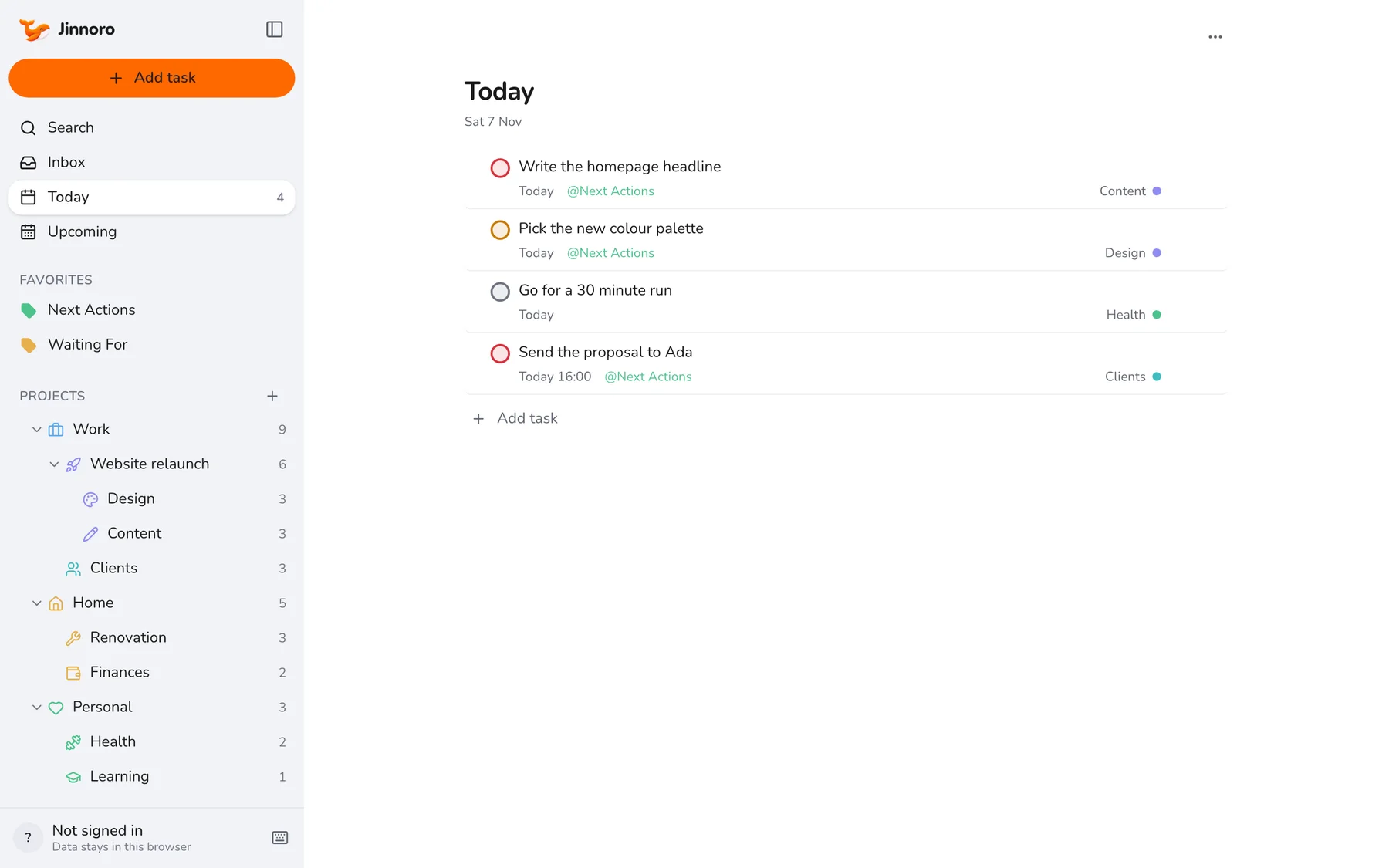
Every day
- Capture into the Inbox all day.
- Morning: look at Today, then Next Actions, and pick what to do.
- Evening: clear the Inbox into projects. Aim for empty.
Once a week
- Open every project and check each has a next step.
- Go through Waiting For and follow up where needed.
- Add new projects, and drop the ones you no longer want.
Set it up in ten minutes
Create your areas, add the two labels, and empty your head into the Inbox.
Open Jinnoro