Jinnoro
Guides · Using Jinnoro · 4 min read
Add tasks fast with Quick Add
Type one line and Jinnoro fills in the project, label, priority and date. Here is everything Quick Add understands.
Quick Add is the fastest way to get a task into Jinnoro. You type a sentence, and the app finds the project, the labels, the priority and the date inside it, and removes them from the title.
You can use as little or as much of it as you like. This guide goes from the simplest case to a full line.
Step 1
Open it and type a title
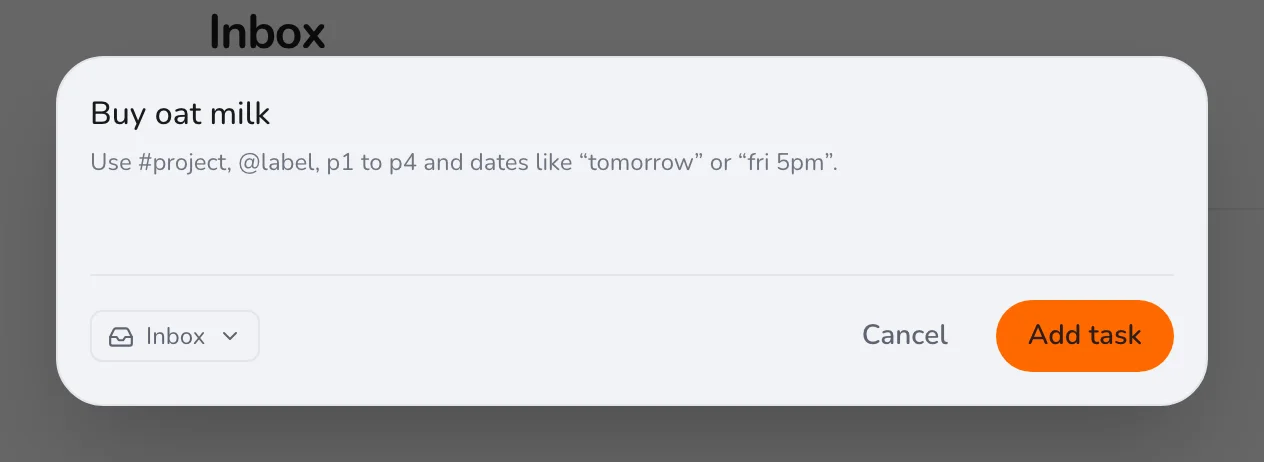
Press Q anywhere in the app, or use the orange Add task button in the sidebar. Type a title and press Enter. With nothing else, the task goes to the Inbox.
Step 2
Add a date in plain words
Write the date and time as you would say them. Jinnoro shows what it understood in a chip below the title, so you can check it before you press Enter.
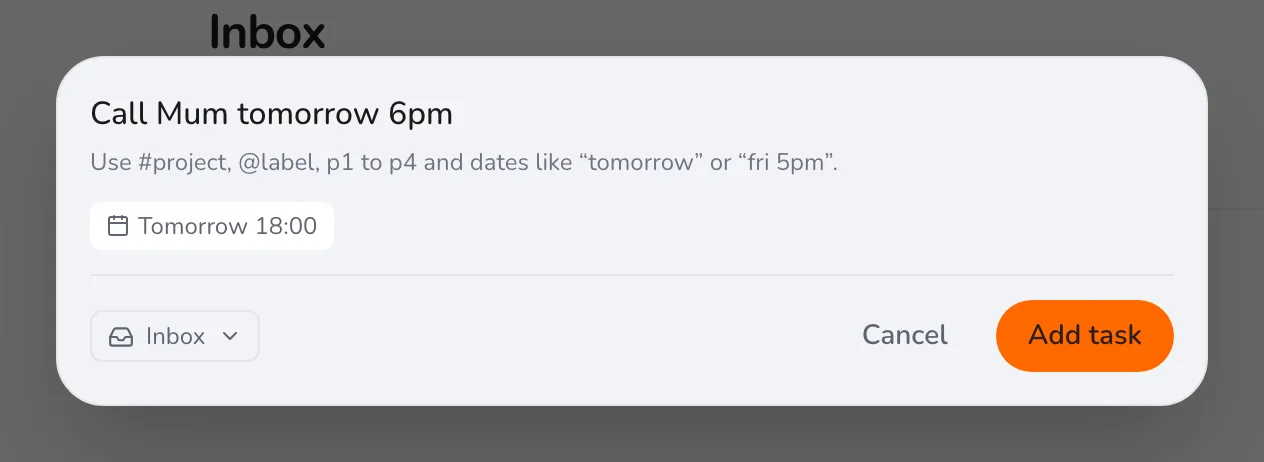
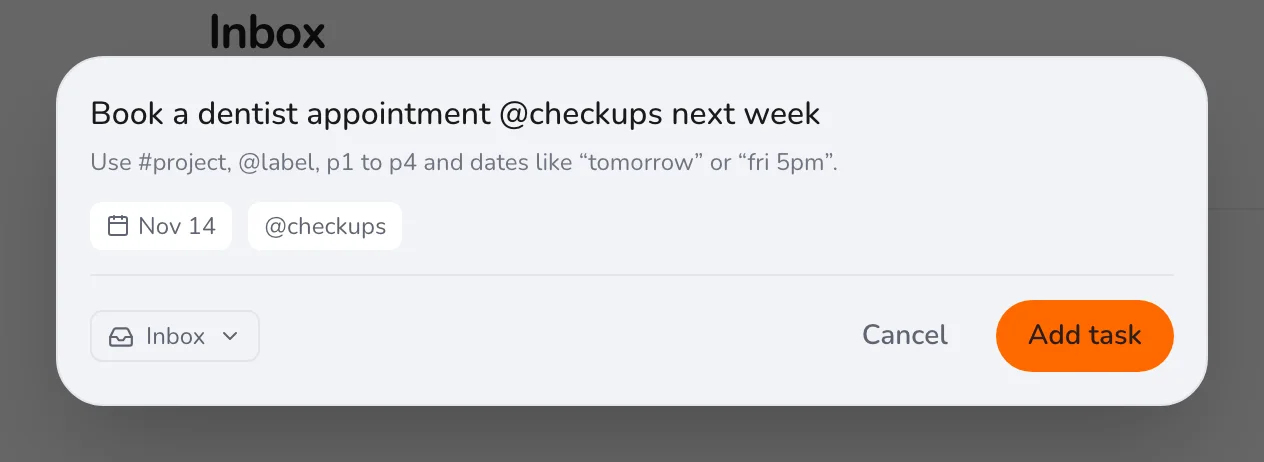
tomorrow,friday,next mondayfriday 5pm,in 3 days,next week
Step 3
Put it in a project with a priority and a label
Type # and a project name to choose where it goes, @ and a label name to add a label, and p1 to p4 for the priority, where p1 is the most urgent. Names with spaces work, as long as the project or label exists.
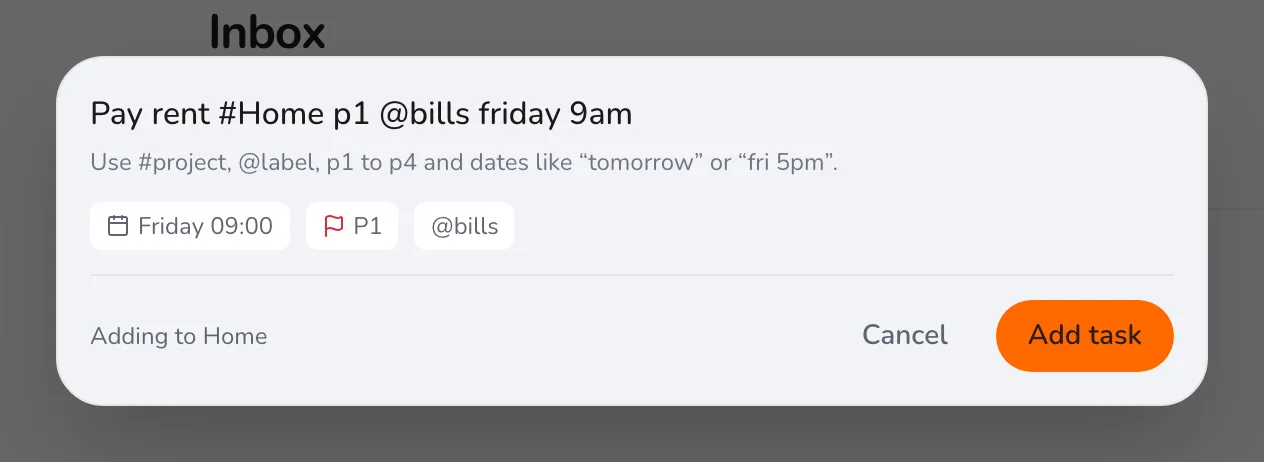
Tip. A project that has subprojects is a folder and cannot hold tasks, so Quick Add will ask you to name one of its subprojects.
Step 4
Create a label as you type
If you write @ and a single word that is not yet a label, Jinnoro creates the label when you add the task. For labels with several words, create them first in the sidebar.
Step 5
See the result
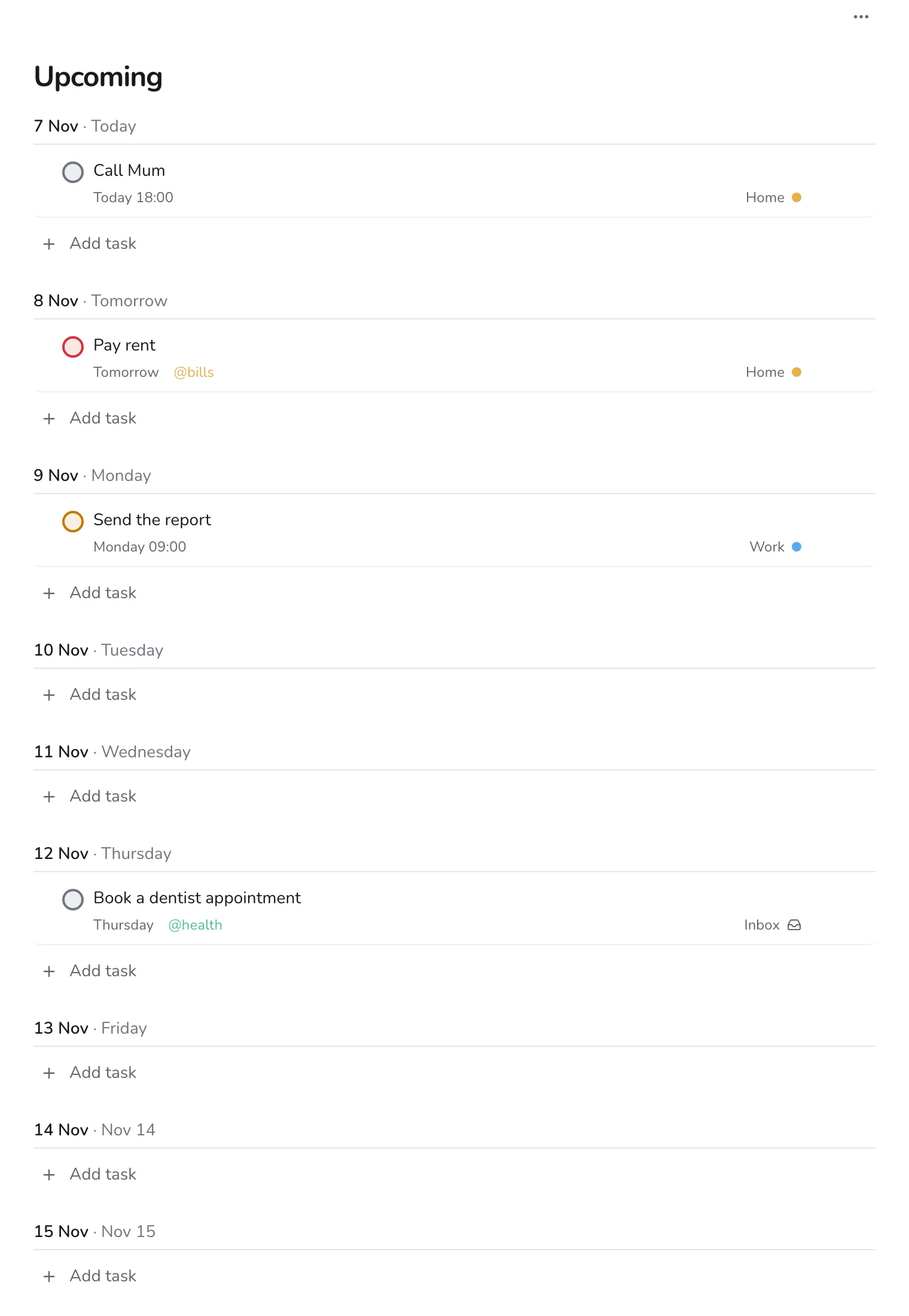
Tasks with dates show up in Today and Upcoming, and in their project. Anything you added without a project waits in the Inbox until you sort it.
Quick Add is also how you capture without thinking: type, Enter, and carry on. For more shortcuts, see working faster with the keyboard.