Jinnoro
Guides · Teachers · 6 min read
Plan lessons, grading and parent messages as a teacher
One structure for classes, admin and parent communication, with labels that group prep, grading and messages across everything.
A teacher's week mixes three different jobs: preparing lessons, marking work and talking to parents, plus meetings in between. Each class has its own timeline, but the jobs repeat in every class.
This guide uses projects for the classes and for admin, and three labels, Prep, Grading and Parent, so you can look at your work by class or by job.
Step 1
Create folders for classes and for admin
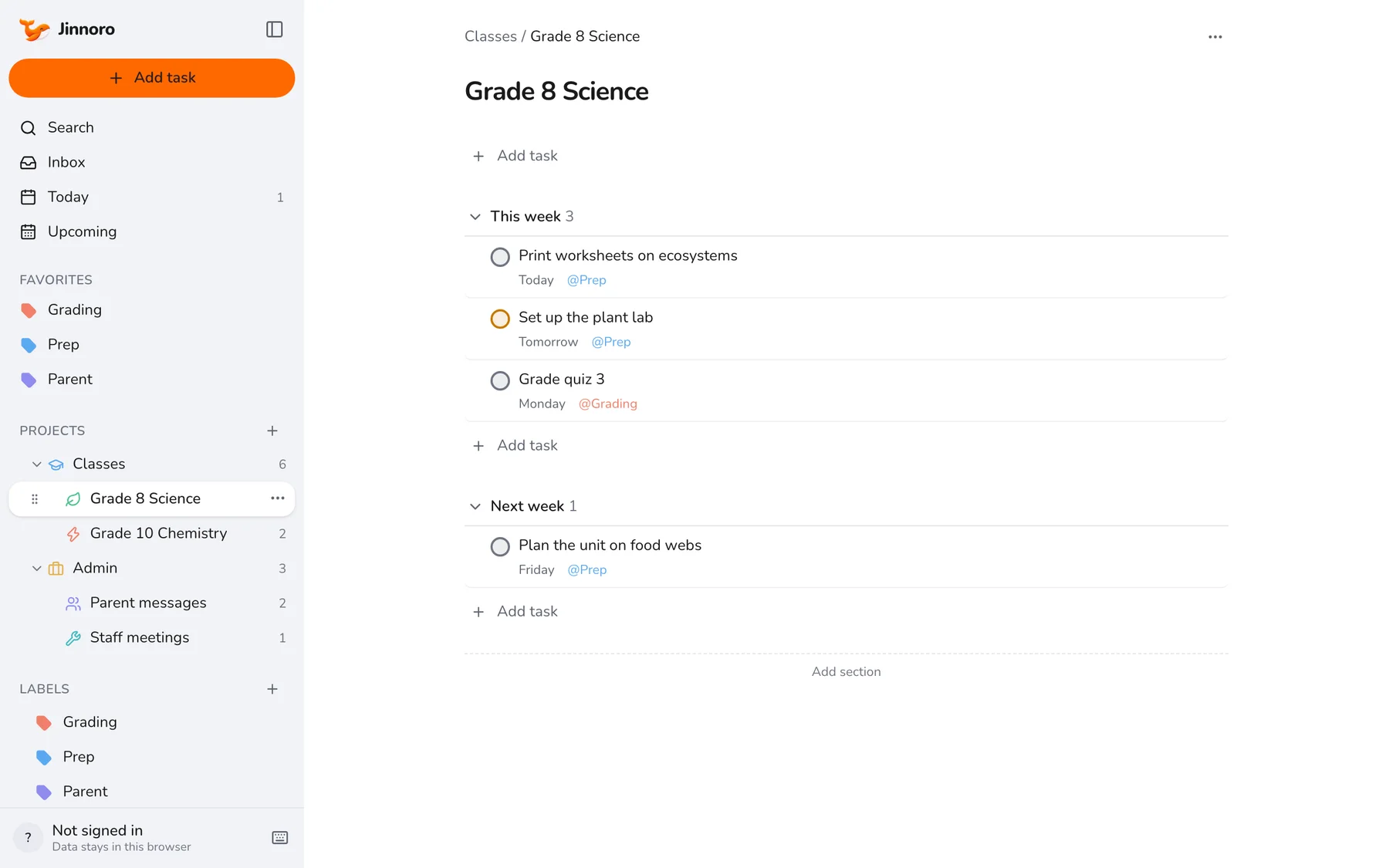
Create a Classes folder with one project per class, and an Admin folder with Parent messages and Staff meetings. Open the Grade 8 Science project and add two sections, This week and Next week, so you always see what is coming.
Step 2
Add the three labels
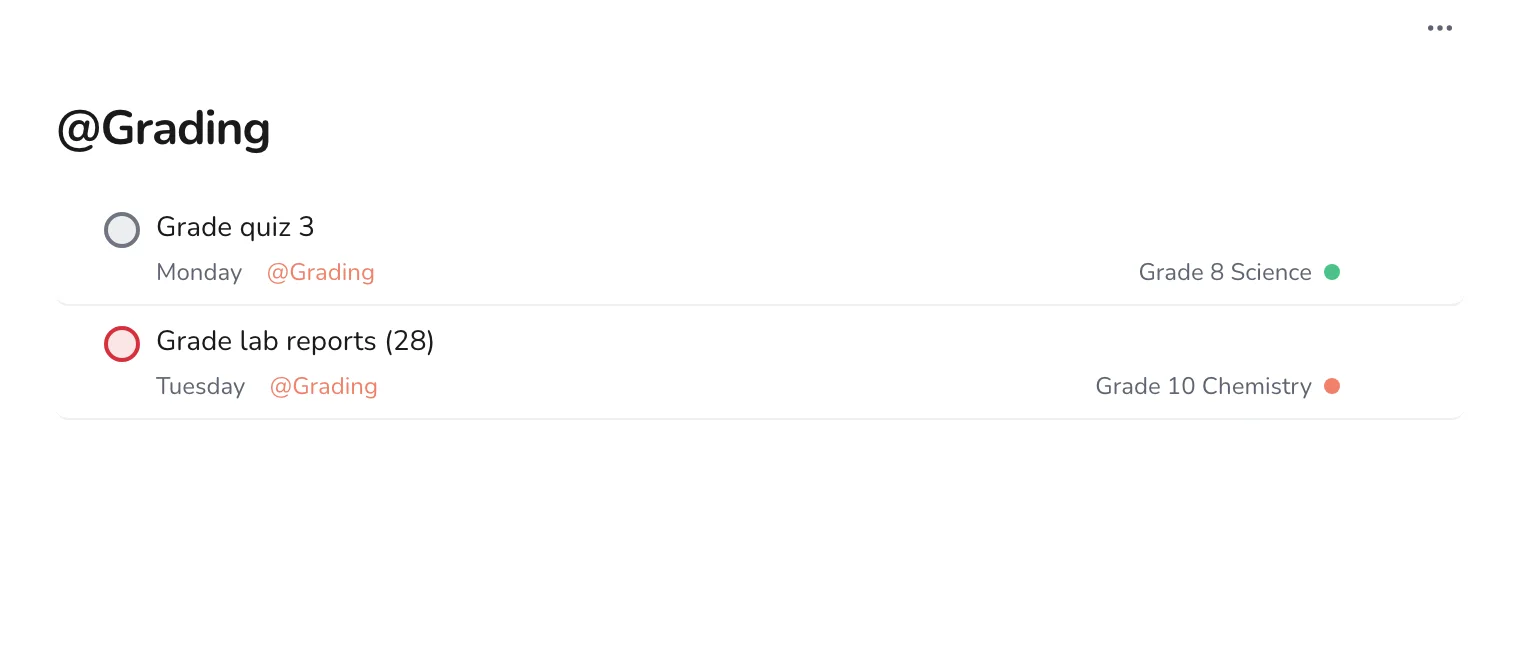
Create Prep, Grading and Parent. Put them on tasks as you add them. With three labels you can answer “what do I have to mark this week?” without opening a single class.
Step 3
Add tasks quickly between lessons
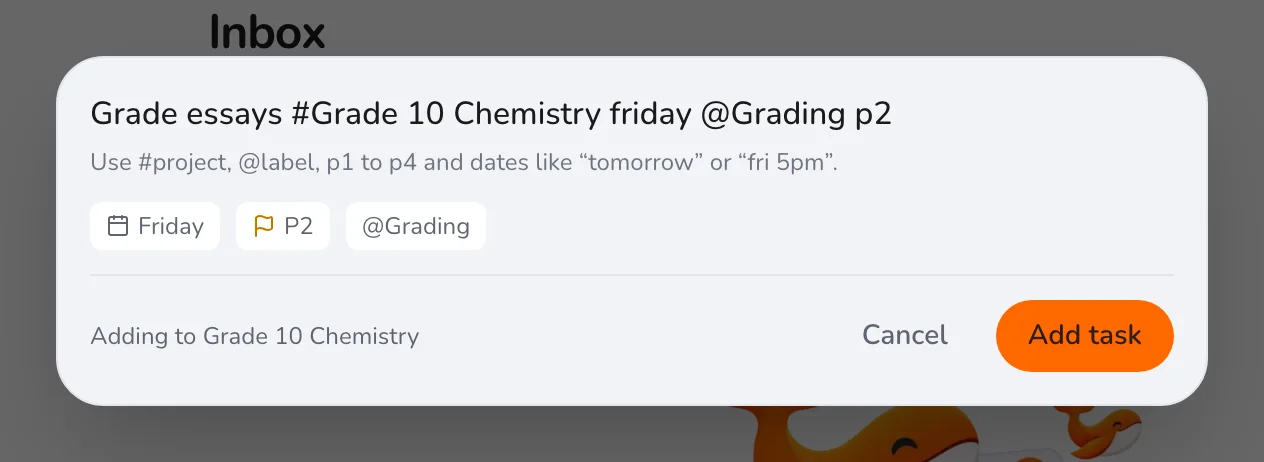
In the gap between lessons, press Q, type the task, the class and the label, and go. For example, “Grade essays #Grade 10 Chemistry friday @Grading p2”.
Step 4
Start every day on Today
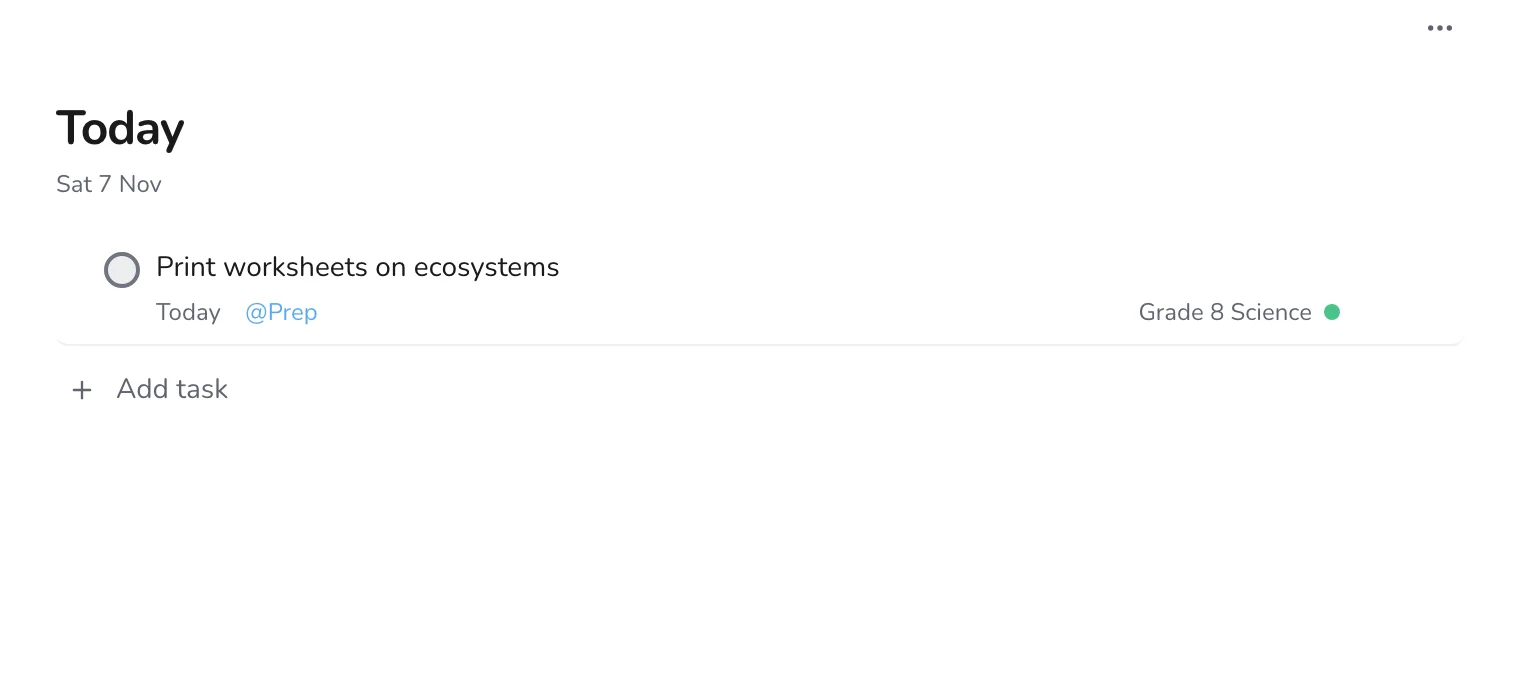
Today shows what is due today, and what has slipped from earlier days. Check it before the first lesson. If there is too much on it, reschedule something rather than carrying it in your head.
End each week by opening Upcoming to see what is due next week, and add the prep tasks while you remember what each class needs. For a longer plan, see turning a syllabus into a week-by-week plan.