Jinnoro
Guides · Students · 5 min read
Track assignments and deadlines across every course
Use one label to see every assignment from every course in a single list, sorted by date.
Courses are one way to sort your work. Types of work are another: assignments, quizzes and exams all need a different kind of attention. Labels let you look at your work both ways at once.
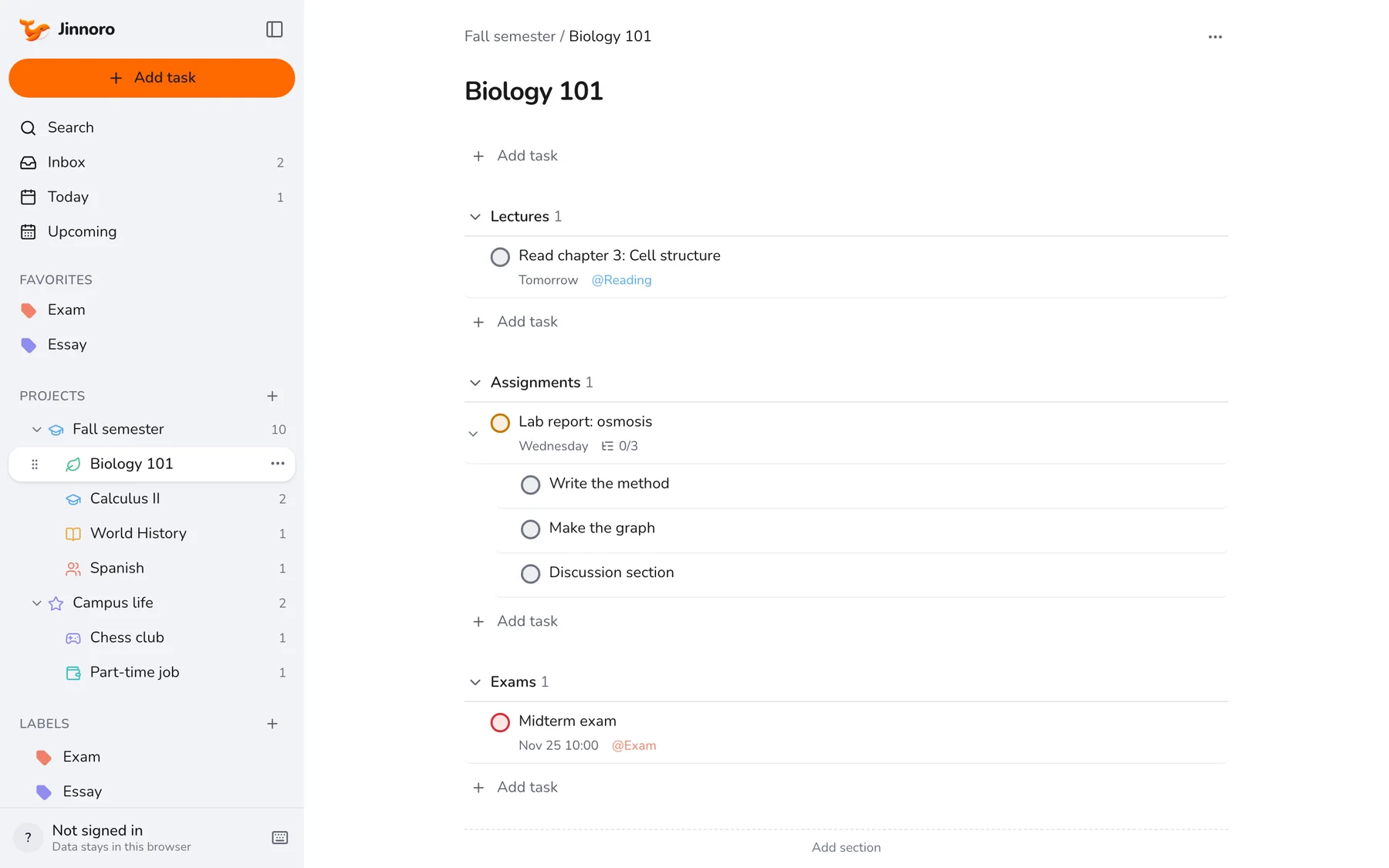
Here you will keep each course as a project, and add three labels, Assignment, Quiz and Exam, so a single click shows everything of that type across all courses.
Step 1
Create the labels
Press the + next to Labels in the sidebar. Create Assignment, Quiz and Exam, pick a color for each, and tick Add to favorites so they sit near the top of the sidebar.
A task can carry several labels, and the same label works in every course. That is the difference from a project: a task lives in exactly one project, but it can have as many labels as you like.
Step 2
Add an assignment in one line
Open Quick Add with Q and type the title, then # and the course, a due date, a priority and @ and the label. Everything is optional, and the order does not matter.
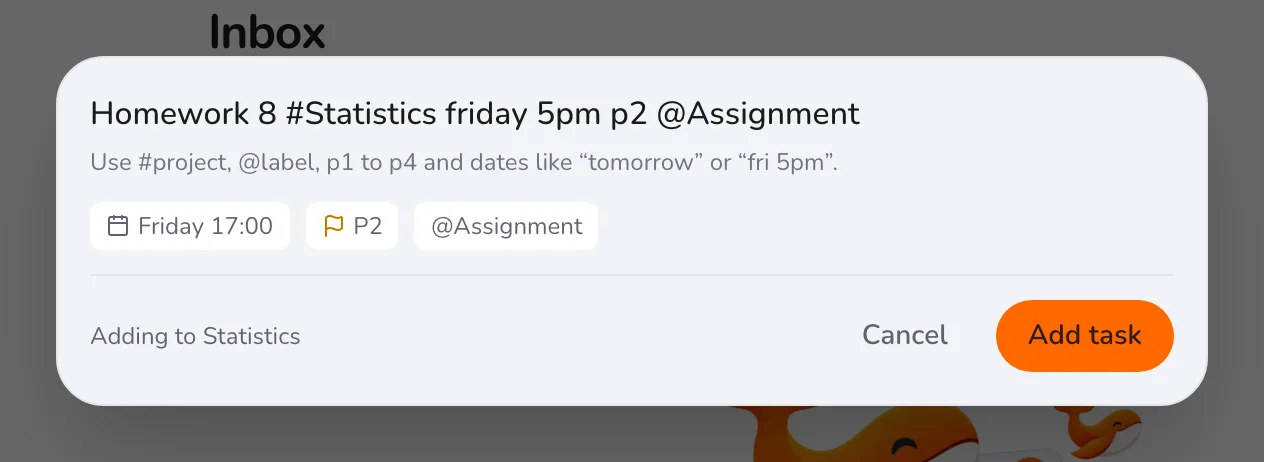
Tip. When you add a task with the Add task button on a page, typing @ in the name shows your labels, so you don't have to remember how you spelled them.
Step 3
See all your assignments in one list
Open the Assignment label in the sidebar. You see every assignment from every course, in date order, with the course shown on the right of each row.
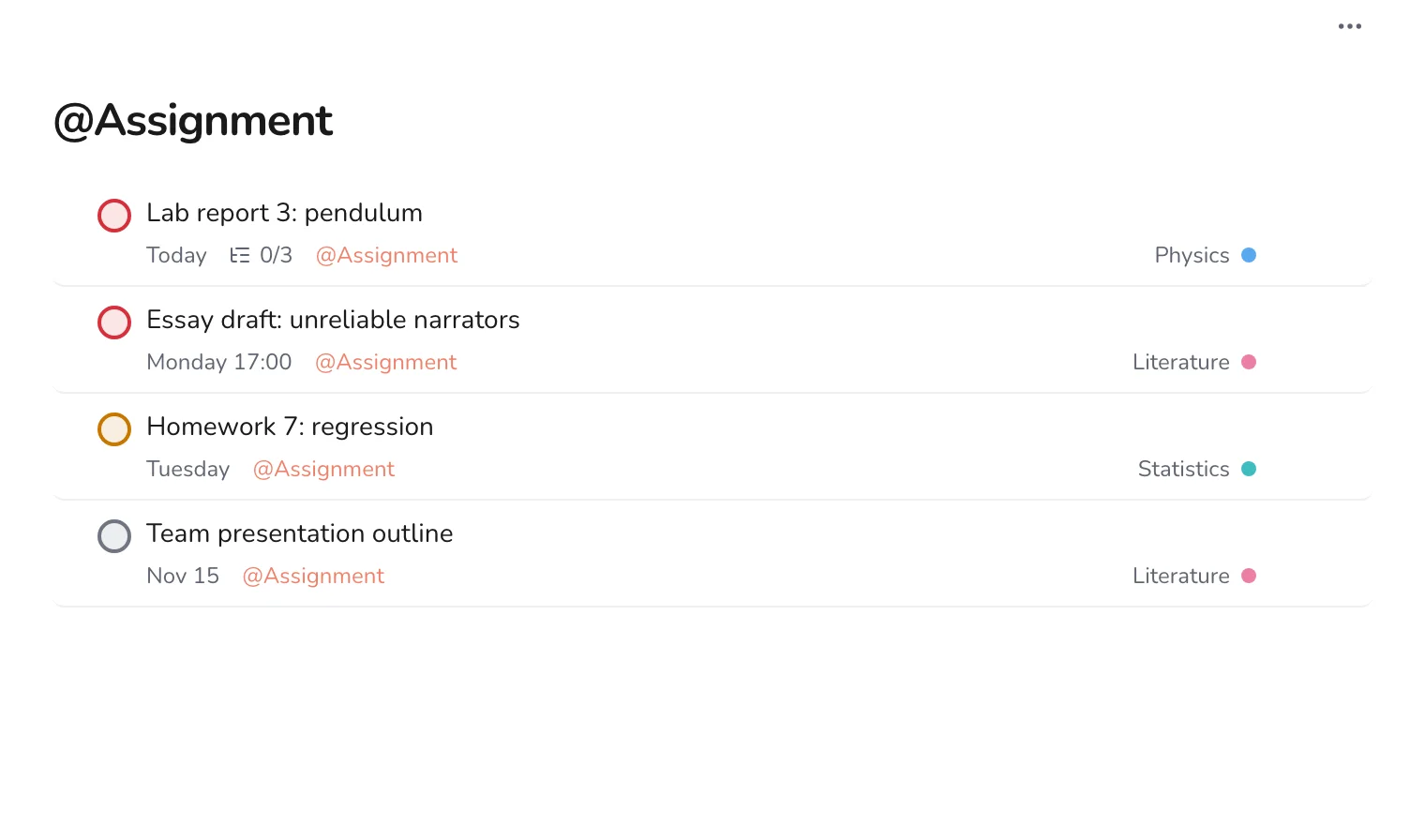
Do the same with Quiz and Exam when you are planning study time.
Step 4
Break big assignments into steps
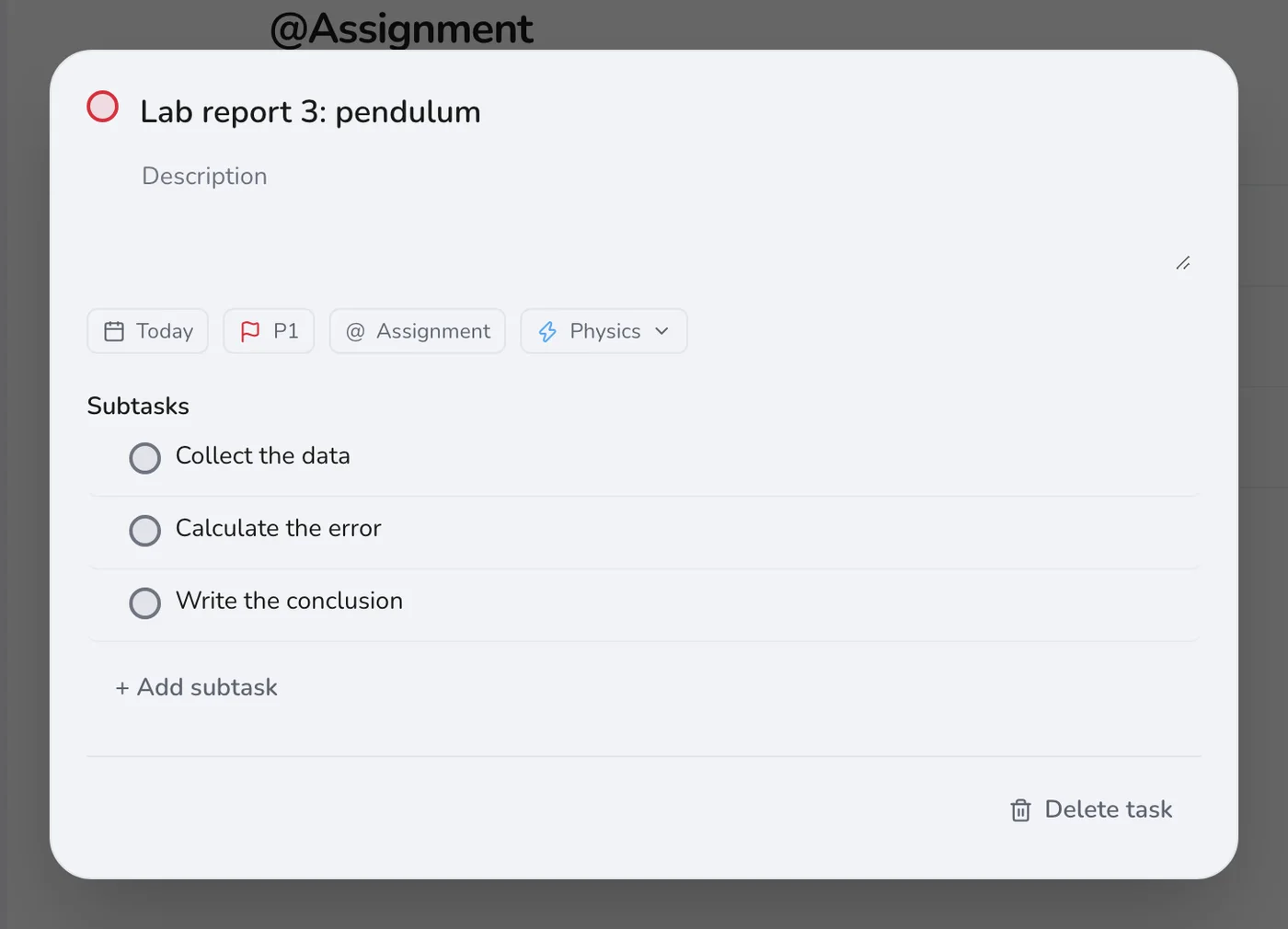
Click a task to open it. Add subtasks for each stage of the work and give the important ones their own dates. A lab report might need the data by Monday, the error calculation by Tuesday and the write-up by Wednesday.
Step 5
Start each day on Today
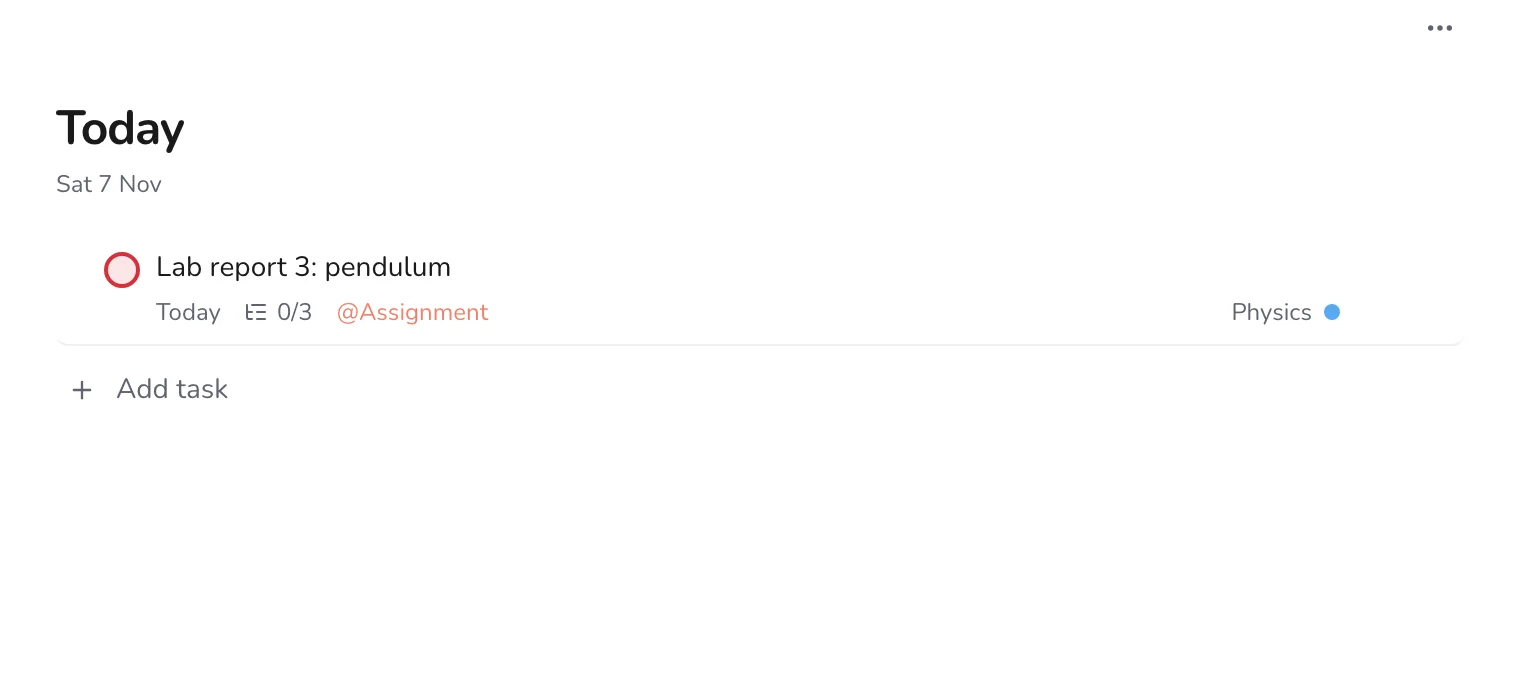
Today shows everything due today, plus anything overdue. Start there in the morning and you will rarely meet a deadline by surprise.
With courses as projects and types of work as labels, you can answer both “what is due in Physics?” and “what are all my exams?” in one click. For the bigger picture, set up a weekly review.