Jinnoro
Guides · Students · 6 min read
Track college applications and their deadlines
Keep every school's essays, recommendation letters and deadlines in one folder, with a Waiting For label for what others must send.
Applying to several schools means several sets of deadlines, essays and documents, many of which depend on other people: teachers, school offices, family. A missed item can mean a missed application.
This guide gives each school its own project inside one Applications folder, and uses Essay and Waiting For labels to keep the whole picture in view.
Step 1
One folder, one project per school
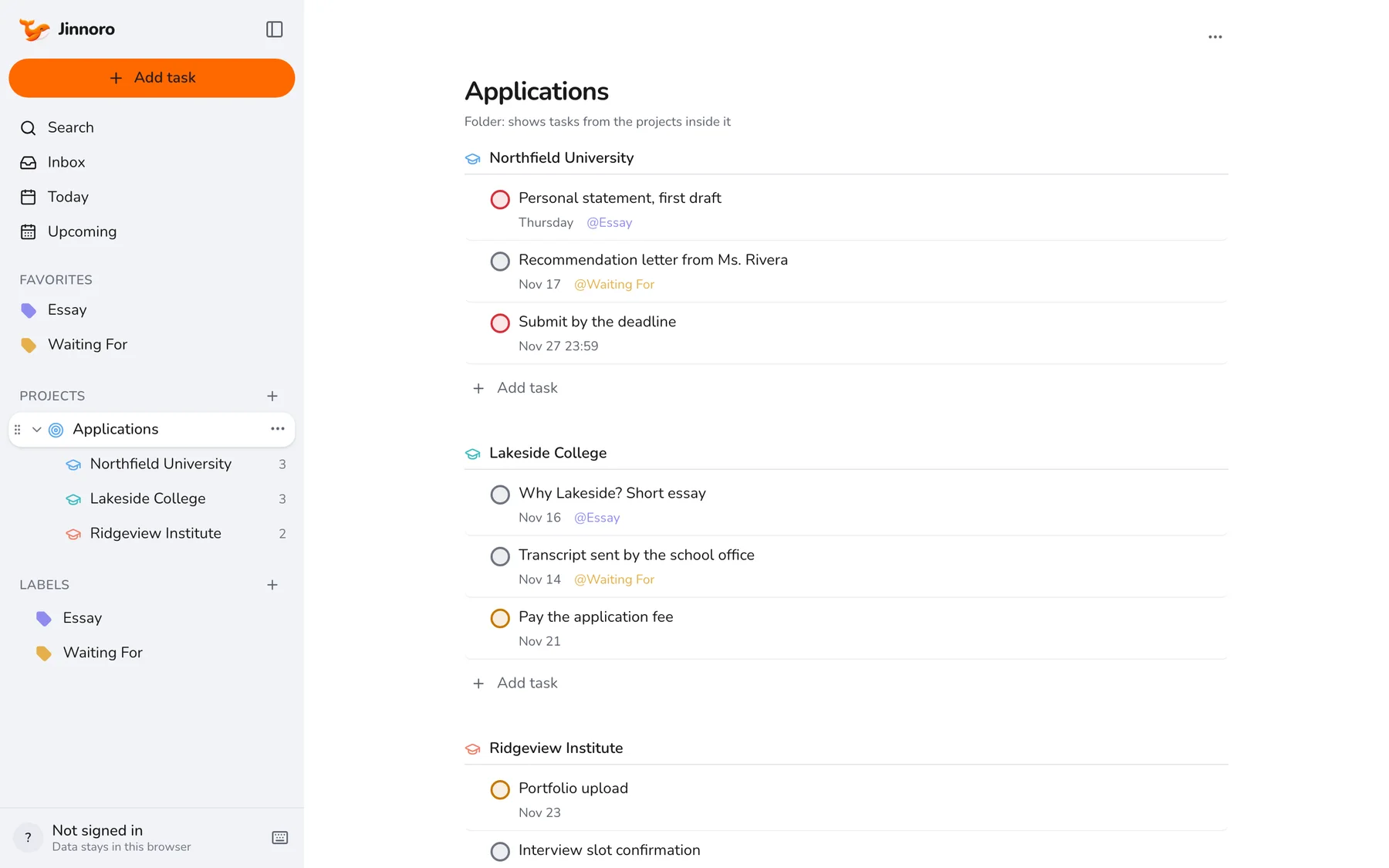
Create a project called Applications, then a subproject for each school. Open Applications to see every school's tasks on one page, grouped by school.
Step 2
List the same tasks for every school
Most applications need the same things: a personal statement or essay, recommendation letters, transcripts, a fee and the final submission. Write them for the first school, then add them for each of the others, changing the dates.
- Essay: a first draft, then a proofread.
- Recommendations: ask early, then wait.
- Transcript and documents: request them from the office.
- Fee and submission: with the deadline and a time.
Step 3
Track the things other people send
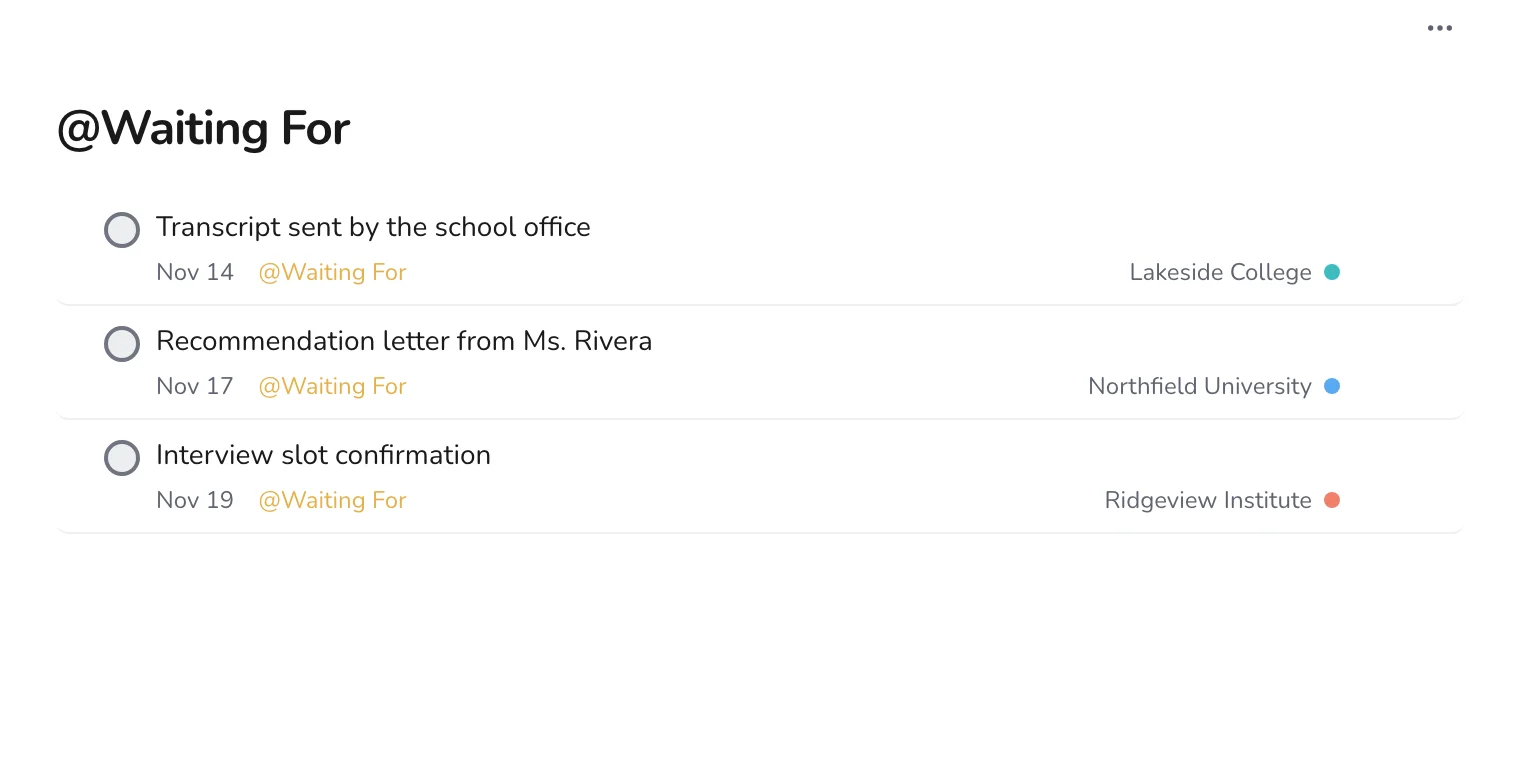
Use Waiting For for the recommendation letter, the transcript and the interview confirmation. Set the date for when you plan to ask again, not for the deadline itself.
Step 4
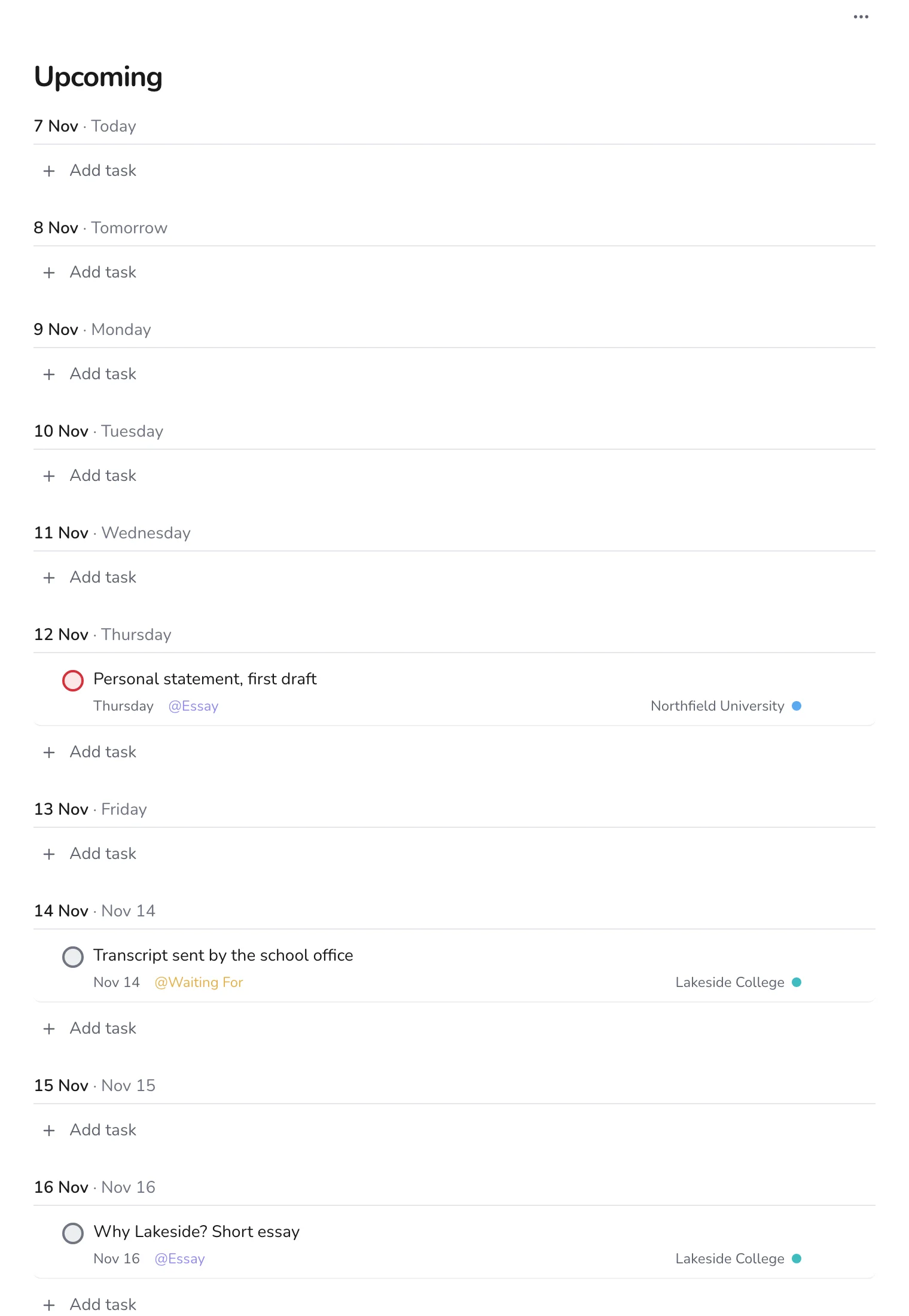
Look at Upcoming every week
Upcoming shows the application tasks mixed by date. It is the easiest way to see that two deadlines land in the same week, so you can start one of them sooner.
Step 5
Add new tasks as they appear
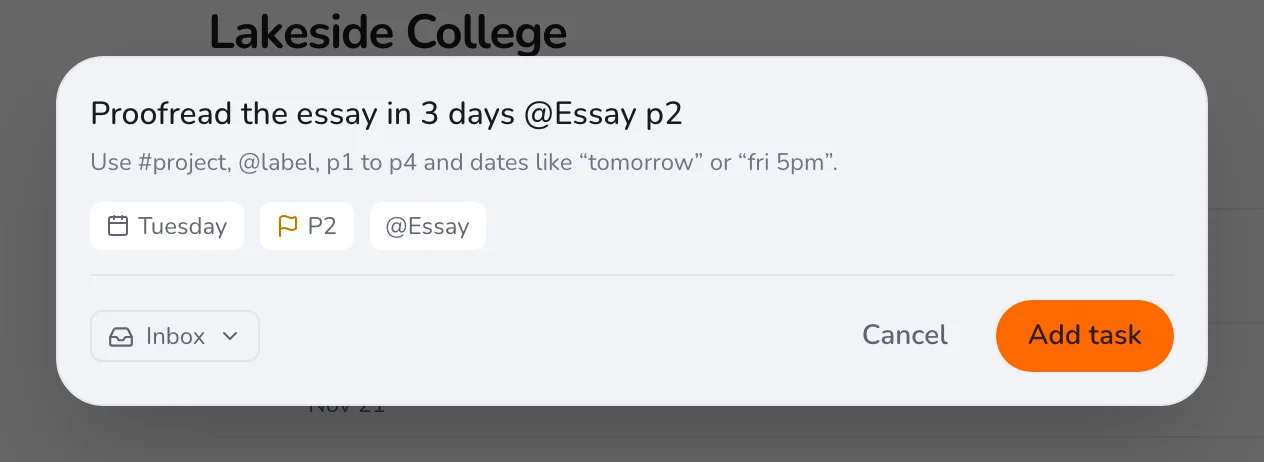
Admissions emails bring new requests. Press Q, name the school with #, and set a date. Add the Essay label to any writing task.
Submit each application a day early, and after sending it, check it off and leave the project for a week. When the results come, you will have a clear record of what you sent. Also useful: a job search board, which uses a similar structure.