Jinnoro
Guides · Using Jinnoro · 3 min read
Work faster with the keyboard
The few shortcuts that matter: add a task, search everything, hide the sidebar and close anything with Escape.
Jinnoro has a small set of shortcuts, on purpose. You can learn all of them in a minute, and the first three will change how you use the app.
Step 1
See the list
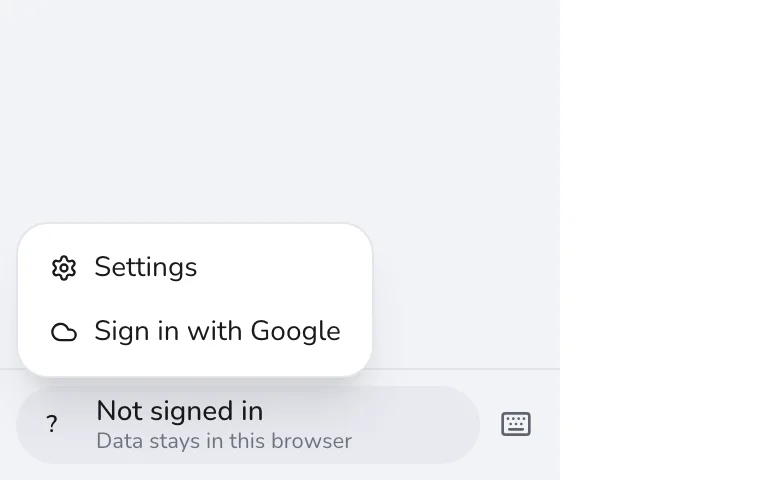
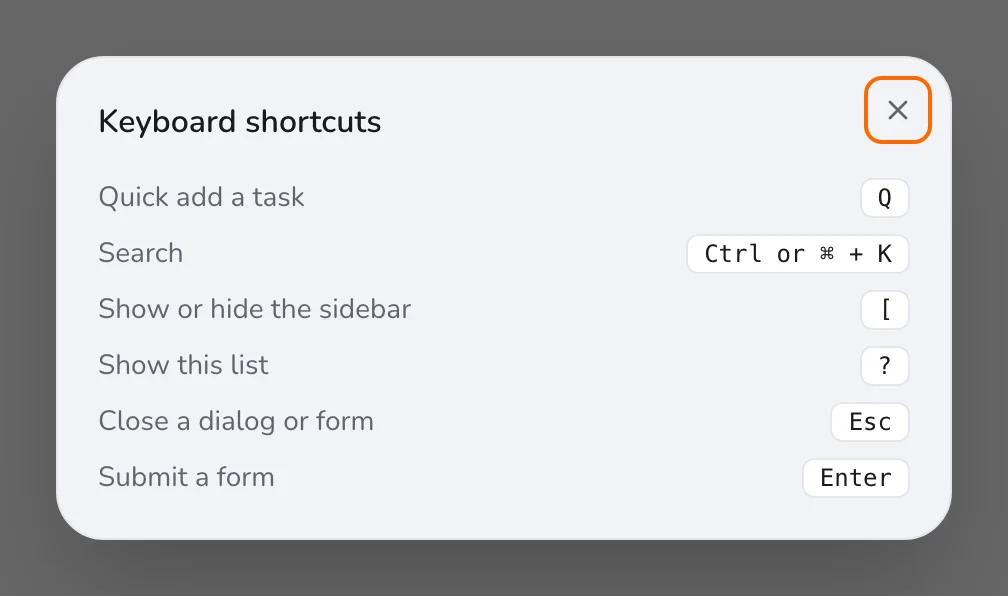
Press ? at any time to see the shortcuts, or click the keyboard icon at the bottom of the sidebar.
Step 2
Add a task with Q
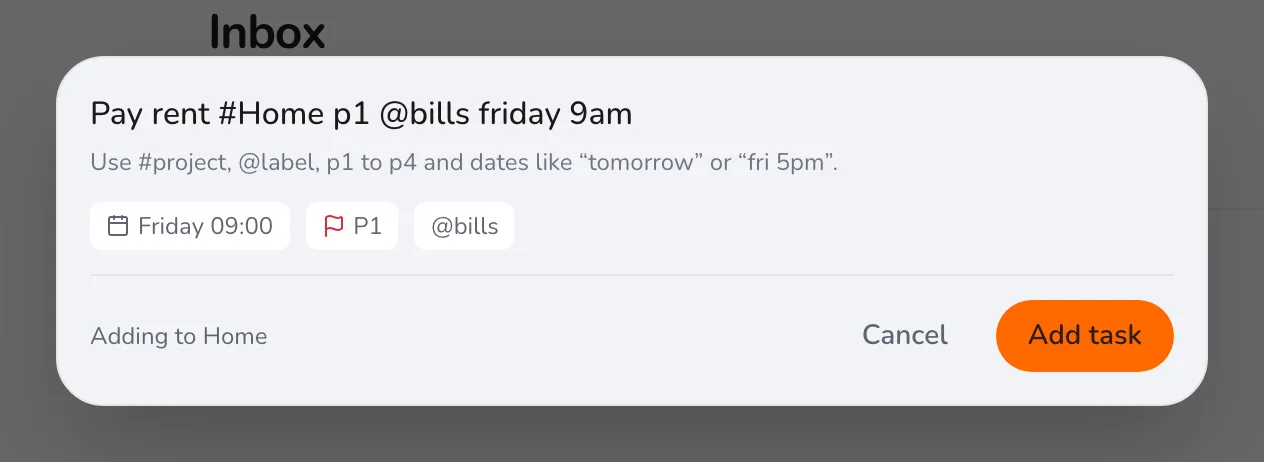
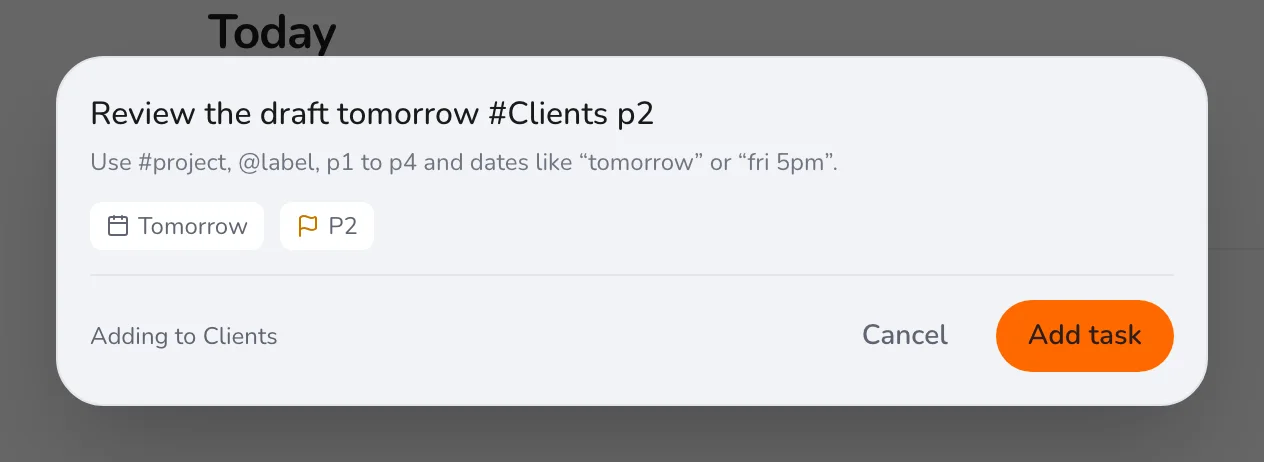
Q opens Quick Add from any page. Type, press Enter, and you are back where you were.
Step 3
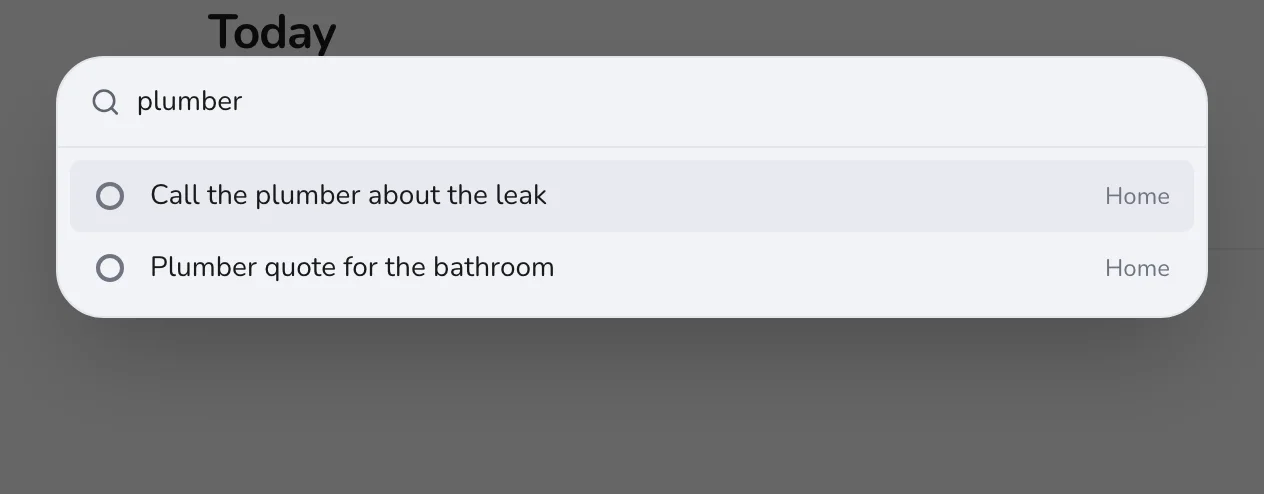
Find anything with Ctrl or ⌘ + K
Search finds tasks, projects and labels as you type, and opens the one you choose. Use the arrow keys to move through the results and Enter to open one.
Step 4
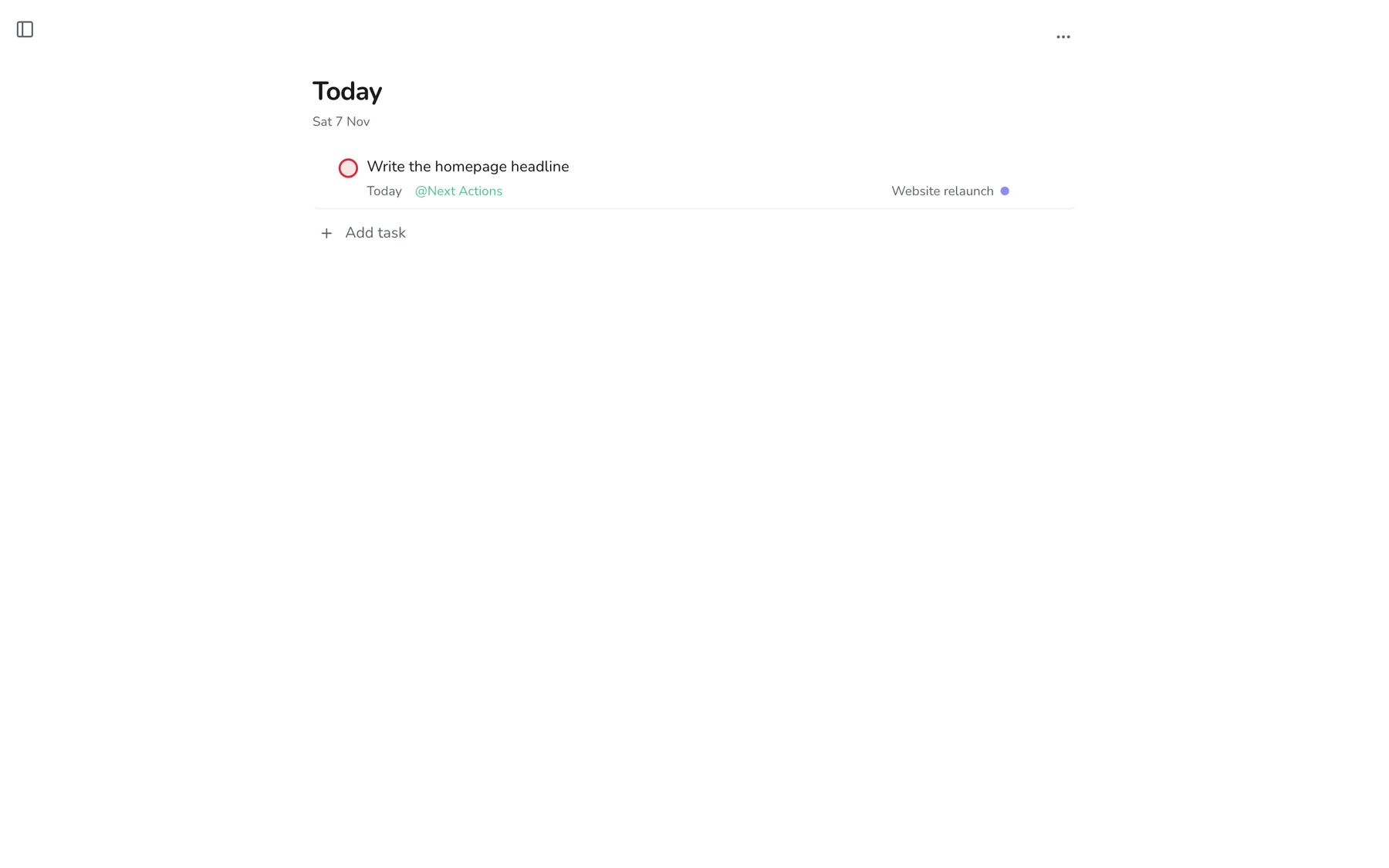
Hide the sidebar with [
When you want to focus on one list, press [ to hide the sidebar. Press it again to bring it back.
Step 5
Close and confirm
Esc closes any dialog or form, and Enter submits one. Together with Q, that is all you need to add a task without touching the mouse.
For what you can type inside Quick Add, see adding tasks fast with Quick Add.