Jinnoro
Guides · Using Jinnoro · 3 min read
Back up and export your tasks
Download everything as a file, restore it later, and know what each option in Settings does.
Your tasks matter, so it is worth having a copy outside the app. A backup is one file that contains everything: projects, sections, tasks, subtasks and labels.
It takes about ten seconds, and it is a good habit before any big change.
Step 1
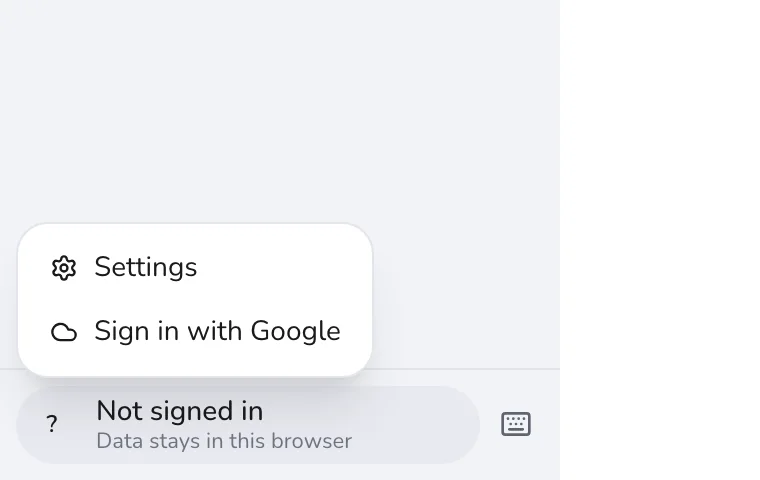
Open Settings
Click your account at the bottom of the sidebar and choose Settings. The last section, Your data, holds the three options.
Step 2
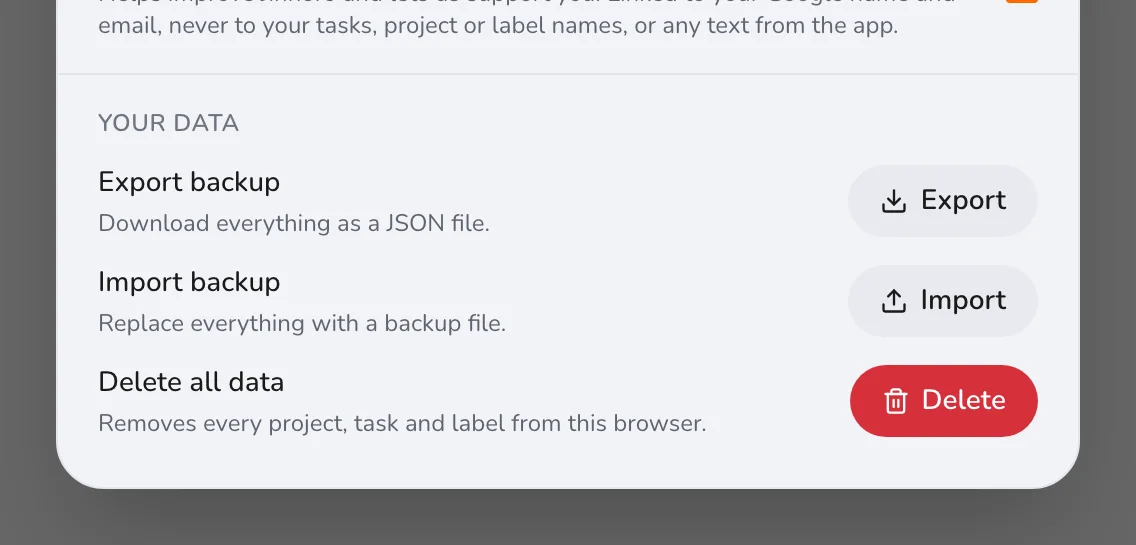
Export a backup
Under Your data, Export backup downloads everything as a JSON file to your computer. Keep it somewhere safe, with a date in the name.
Step 3
Restore from a backup
Import backup replaces everything in the app with a backup file. Because it replaces, not merges, export a fresh backup first if you have newer changes. Jinnoro checks the file before it uses it, and refuses one that is damaged.
Step 4
Delete everything, if you want to
Delete all data removes every project, task and label from this browser. It is for starting over, so export first. If you are signed in, Remove account also deletes the copy in your Drive.
If you sign in with Google, you also get a readable copy of your tasks in a Drive folder, but a backup file is still worth having. See keeping every device in sync.